How to Watch Netflix on Xgimi Mogo Pro?
Mastering Netflix playback on your XGIMI MoGo Pro requires navigating proprietary Android TV application limitations. Implementing dedicated external streaming hardware restores crisp 1080p video output and fluid user navigation.
Native Android TV certification barriers block direct Netflix app downloads on older XGIMI firmware. Deploying an external HDMI streaming dongle completely bypasses these software restrictions for reliable high-definition playback.
Ready to compare verified models? Start with our Best Screen For Xgimi Horizon Pro: Top Picks Reviewed.
Practical Quick-Reference Table
| Connection Method | Resolution Support | Setup Complexity |
|---|---|---|
| Native App Store | SD to 720p | Low |
| Desktop Manager APK | 1080p Unverified | Medium |
| Certified HDMI Dongle | Full 1080p HDR | Low |
| Wireless Screen Mirroring | Variable 720p/1080p | Medium |
| Direct Wired Laptop HDMI | Native 1080p 60Hz | Very Low |
| Dedicated Streaming Stick | Full 1080p Dolby | Low |
Understanding Native Android TV Streaming Constraints
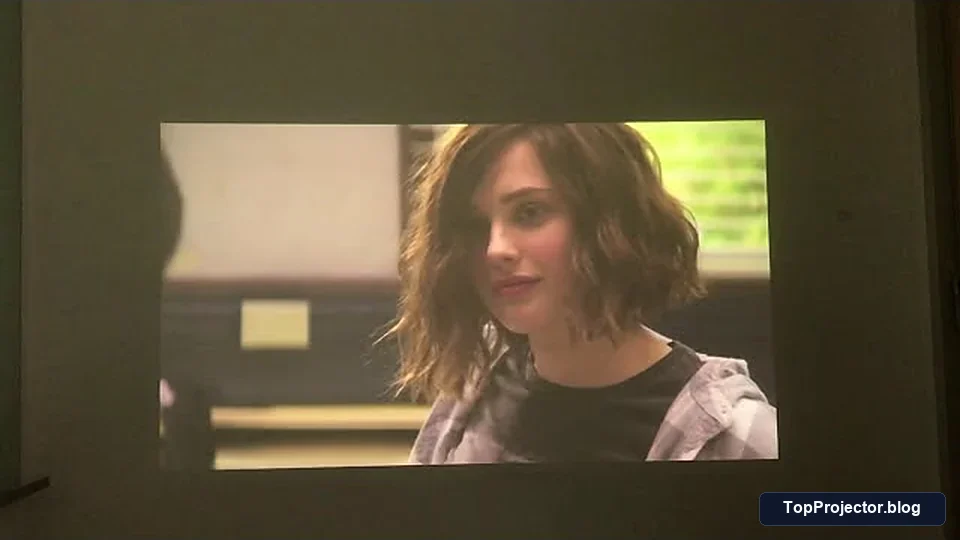
The XGIMI MoGo Pro runs on a customized version of Android TV. However, missing official Widevine DRM certification prevents seamless native application access for popular subscription streaming services.
When troubleshooting app installation errors, you can map out your physical room layout using our throw distance calculator to secure exact placement dimensions before final hardware mounting.
Understanding these hardware-level licensing hurdles helps you select stable alternative viewing methods. Avoiding unsupported software APK installations protects your projector from chronic system instability and repeated crashes.
Projection optics require stable video bitrates to maintain crisp motion handling. Unstable software environments introduce dropped frames and severe audio desynchronization during high-motion cinematic sequences.
- Android TV OS lacks direct Widevine L1 certification for native Netflix apps.
- Official app stores deliberately block incompatible packages on portable LED projectors.
- Unverified APK installations frequently suffer from broken remote control navigation inputs.
- System crashes result from memory leaks in unofficial background streaming processes.
The Impact of Missing DRM Licenses
Digital Rights Management protocols dictate maximum permissible playback resolutions across connected displays. Without high-tier certification, streaming platforms restrict video outputs to low standard definition.
Portable LED projectors rely heavily on clean software decoding pipelines. Compromised decoding pipelines force the internal ARM processor to struggle with high-bitrate video streams.
- DRM protocols restrict uncertified hardware to 480p or 720p maximum resolution.
- Internal processors overheat when handling unoptimized software video decoding tasks.
Navigating Desktop Manager And Third-Party Workarounds
XGIMI provides an alternative utility tool called Desktop Manager to facilitate app sideloading. This workaround attempts to bridge the gap left by missing official store listings on older firmware builds.
Accessing this utility requires careful navigation through secondary system menus. Users must manually install specific versions designed to emulate standard touch-based mouse navigation using the remote.
While functional, this approach demands patience due to clunky remote pointer controls. Standard infrared remotes translate poorly to mouse-driven graphical interfaces found in sideloaded applications.
Furthermore, automated background updates frequently break these fragile software workarounds overnight. You may find your favorite streaming service suddenly non-functional after an unexpected system patch.
- Desktop Manager allows manual installation of alternative app packages.
- Remote control air-mouse functionality is mandatory for selecting menu items.
- Automatic background updates can break custom sideloaded application stability.
- Video resolution often remains capped below full high-definition standards.
Executing The Sideloading Procedure Safely
Begin by downloading the approved utility tool directly from designated manufacturer repositories. Ensure unknown sources are explicitly enabled within your security permission settings.
Install the package and launch the interface to locate available streaming utilities. Use the virtual mouse pointer on your remote to complete the installation sequence.
- Enable unknown source installations in system security settings.
- Utilize virtual remote pointers to navigate non-standard menus.
Video Walkthrough: Streaming Netflix on XGIMI Projector - It's Easier than You Think
Deploying Certified External HDMI Streaming Dongles
The most reliable method for streaming high-definition video involves external hardware. Plugging a certified streaming stick into the HDMI port completely resolves compatibility bottlenecks.
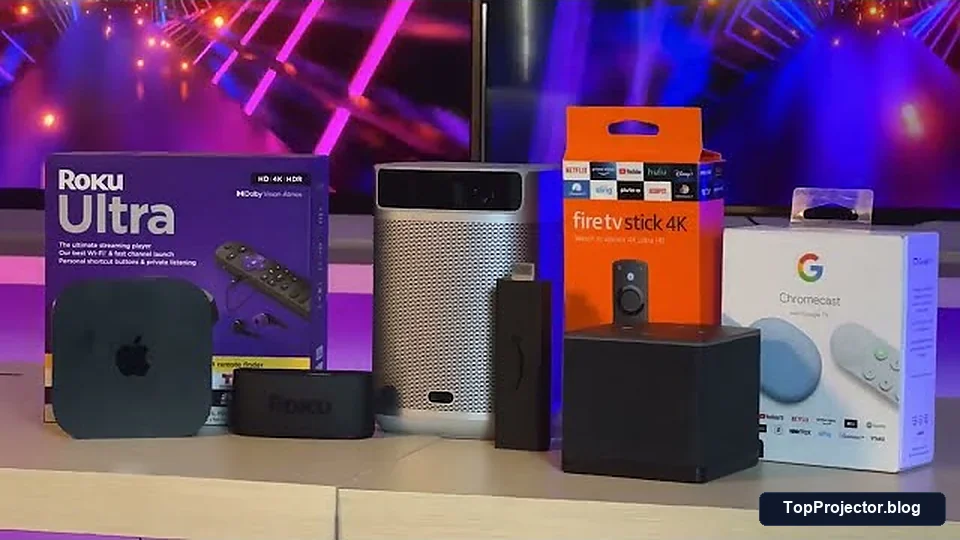
Modern compact streaming sticks draw sufficient power from standard USB ports or wall adapters. This configuration ensures steady voltage delivery without overloading the projector internal power supply.
Hardware decoding shifts entirely away from the projector onto dedicated silicon chips. You gain instant access to full 1080p resolution with our best 1080p projector for outdoor movies selection guiding your choice.
Navigation becomes exceptionally fluid using dedicated Bluetooth remotes bundled with streaming hardware. Voice search and user profile switching operate exactly as intended without software glitches.
- External HDMI sticks bypass all native Android TV software limitations.
- Dedicated hardware decoding ensures smooth 1080p playback and stable frame rates.
- Power is easily supplied via auxiliary USB ports or wall adapters.
- Bluetooth remotes provide responsive navigation without frustrating pointer lag.
Hardware Setup And Cable Management
Insert your preferred streaming stick directly into the rear HDMI input port. Connect the accompanying micro-USB power cable to an external wall charging block.
Switch the projector input source to match the active HDMI channel using the remote. Complete initial device registration steps directly on your projection screen.
- Connect the streaming stick directly to the HDMI input port.
- Use an external wall charger for stable power delivery.
Leveraging Wireless Screencasting And Laptop Mirroring
Wireless casting offers a convenient temporary solution for projecting content from laptops. Both Windows and macOS machines support direct casting over local Wi-Fi networks.
Network congestion and Wi-Fi signal interference can introduce noticeable video stuttering. High-bitrate cinematic content demands a robust wireless router operating on a clean 5GHz frequency band.
HDCP encryption protocols occasionally block wireless mirroring attempts from copyright-protected applications. Launching streams directly within web browsers usually bypasses these strict mirroring restrictions.
For mission-critical viewing sessions, a physical wired connection remains superior. Hardwired cables eliminate dropped packets and guarantee synchronized audio-video timing during movie nights.
- Wireless casting connects laptops and mobile devices over local Wi-Fi.
- A robust 5GHz router band reduces packet loss and video stuttering.
- HDCP encryption may block direct browser-based wireless mirroring.
- Wired connections offer superior stability compared to wireless casting methods.
Wired Laptop Connection Best Practices
Connect your laptop using a standard HDMI cable paired with appropriate adapters. Configure your operating system display settings to duplicate or extend the desktop.
Set the output display resolution strictly to 1080p at 60Hz for optimal clarity, much like we observed in our Nebula Capsule 3 review regarding compact optical devices.
- Use certified HDMI cables and adapters for clean signal transfer.
- Lock output resolution to 1080p at 60Hz to prevent scaling distortion.
Video Walkthrough: Desktop Manager
Calibrating Visuals And Managing Ambient Room Light
Portable LED projectors possess limited peak lumen output compared to laser units. Achieving deep black levels requires complete ambient light control in your viewing space.
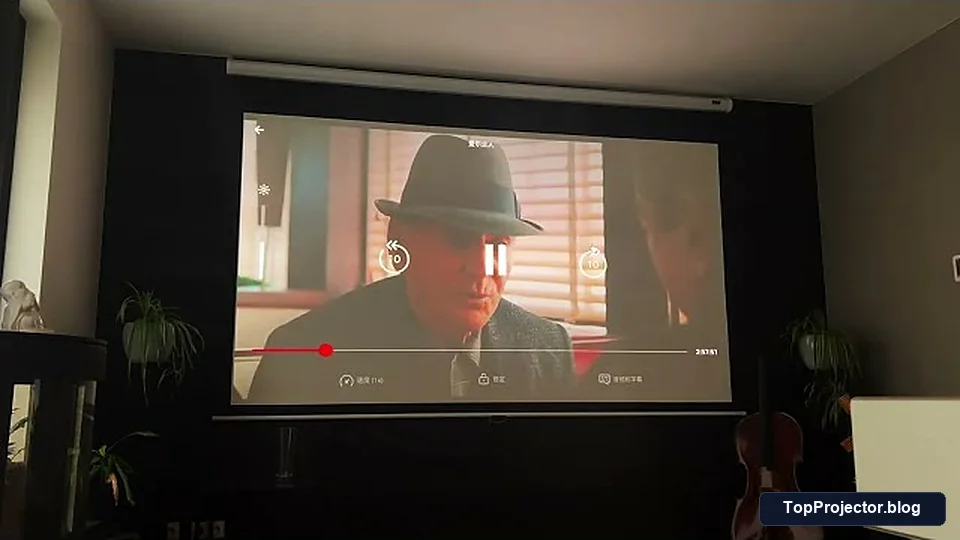
Deploy blackout curtains to eliminate intrusive sunlight reflecting off white projection screens. Controlling room illumination dramatically improves perceived contrast ratios and color vibrancy.
Adjust the picture settings menu to fine-tune brightness, contrast, and color temperature. Selecting Movie or Cinema mode ensures accurate color reproduction aligned with industry standards.
Avoid cranking backlight settings to maximum levels to prevent thermal stress on LEDs. Maintaining balanced settings preserves optical life expectancy and prevents premature light engine degradation.
- Control ambient room light using heavy blackout curtains for deeper blacks.
- Select Cinema picture modes for accurate color temperature and saturation.
- Avoid maximum brightness settings to prevent thermal degradation of LEDs.
- Calibrate focus carefully using internal test patterns for maximum sharpness.
Optimizing Focus And Keystone Alignment
Auto-focus systems work well, but manual micro-adjustments yield superior edge sharpness. Access the manual focus utility via settings to fine-tune text clarity.
Minimize aggressive digital keystone correction to prevent severe pixel resampling artifacts. Review our projector throw ratio guide to master exact lens placement geometry without sacrificing image quality.
- Use manual focus utilities for pinpoint optical edge clarity.
- Minimize digital keystone adjustments to prevent pixel distortion.
Troubleshooting Common Audio And Resolution Errors
Audio desynchronization issues frequently plague portable projector streaming setups. Adjusting audio delay settings within your media player corrects lip-sync discrepancies immediately.
HDCP handshake failures can manifest as blank black screens upon startup. Power-cycling both the projector and the external streaming source usually clears lingering EDID handshake errors.
Ensure your HDMI cable supports high-speed data transmission specifications. Faulty or damaged cables cause intermittent signal drops and unpredictable resolution switching behavior.
Monitor internal operating temperatures during extended marathon viewing sessions. Proper ventilation around intake vents prevents thermal throttling and unexpected sudden system shutdowns.
- Adjust audio delay settings to fix lip-sync errors during playback.
- Power-cycle connected devices to resolve stubborn HDCP handshake failures.
- Use high-speed HDMI cables to prevent intermittent signal dropouts.
- Ensure clear ventilation paths around projector intake and exhaust vents.
Resolving EDID Handshake Failures
Disconnect all HDMI cables and power cords from every device simultaneously. Wait sixty seconds before reconnecting the power sources to reset EDID tables.
Power on the external streaming hardware first before initializing the projector. This ensures the source device negotiates the correct display resolution successfully.
- Unplug all power cords to reset internal EDID memory tables.
- Power on streaming hardware before initializing the projector.
Frequently Asked Questions
Can I install Netflix directly on the XGIMI MoGo Pro app store?
No, official app stores block direct downloads due to missing Widevine DRM certification. You must use an external HDMI streaming device for reliable high-definition playback.
What resolution does the Desktop Manager APK version output?
The unofficial sideloaded app typically outputs standard definition or limited 720p. Using a dedicated streaming stick is required to achieve full 1080p high-definition video.
How do I fix audio delay when using external Bluetooth speakers?
Navigate to the advanced audio settings menu inside your connected streaming device. Adjust the audio sync offset slider until dialogue matches mouth movements perfectly.
Does wireless screen mirroring from a phone work well for movies?
Wireless casting often suffers from micro-stuttering and network packet loss. A wired laptop HDMI connection or streaming stick provides vastly superior playback stability.
Why does the projector screen turn completely black when playing videos?
This usually indicates an HDCP handshake failure between devices. Unplugging and reconnecting the HDMI cable while devices are powered on will reset the display EDID handshake.