How to Watch Netflix on Xgimi Halo?
Master the exact steps needed to stream Netflix flawlessly on your XGIMI Halo. Optimize your optical projection setup today.
Native Netflix isn't pre-installed due to certification gaps on older Android TV builds. Use Desktop Manager or an external media stick to stream properly.
Ready to compare verified models? Start with our Best Projector To Watch Movies: Top Home Theater Picks.
Practical Quick-Reference Table
| Scenario / Metric | Recommended Target | Why It Matters |
|---|---|---|
| Platform Limitation | Desktop Manager App | Bypasses missing native Play Store integration. |
| External Stick | Roku or Fire TV Stick | Guarantees official DRM and 1080p playback. |
| Throw Ratio | 1.2:1 fixed lens | Determines exact screen size relative to distance. |
| Brightness Output | 600 ANSI Lumens | Requires dark room control for vivid contrast. |
| Input Lag | Low latency mode | Crucial if gaming alongside movie streaming sessions. |
| Audio Routing | HDMI ARC / Bluetooth | Prevents lip-sync delay during dialog scenes. |
Understanding the XGIMI Halo Platform Limitations
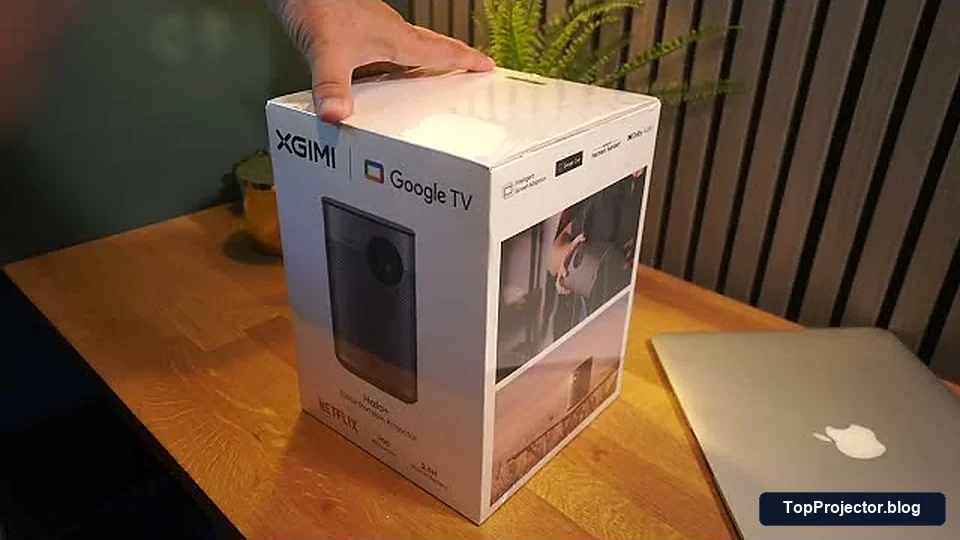
The XGIMI Halo is a high-performance portable projector featuring 600 ANSI lumens and a native 1080p resolution. However, navigating its software requires understanding specific operating system restrictions regarding media streaming.
Because of strict digital rights management agreements, older Android TV iterations lack direct access to the main Netflix application. Follow our Netflix optimization guide to bypass these limits.
Understanding this technical hurdle prevents frustration and guides you toward reliable workaround methods that maintain high-definition video output without sacrificing color accuracy or stability.
Modern projection optics rely heavily on clean software pipelines to deliver crisp text and seamless video decoding across various streaming ecosystems.
- Native Android TV build lacks direct Netflix DRM certification.
- Projector outputs crisp 1080p resolution with DLP technology.
- Manual software workarounds are required for direct app deployment.
- External hardware provides a fully verified alternative path.
Android TV Versus Official Certification
Google's operating system powers the user interface, but missing developer licensing stops Netflix from appearing in standard searches. Workarounds bridge this gap effectively.
Always verify your firmware version is fully updated to ensure optimal compatibility with third-party app launchers and media codecs.
- Firmware updates improve overall system stability.
- Missing licenses affect direct application store visibility.
Utilizing the Built-In Desktop Manager Utility
XGIMI includes a proprietary utility called Desktop Manager designed specifically to solve app deployment roadblocks. This application acts as a secure intermediary for downloading restricted software.
Navigate to your projector app drawer and locate the Desktop Manager application icon. When upgrading, consult our best value ultra short throw projector guide for living room alternatives.
Search for the media streaming application within this specialized ecosystem. The system downloads a compatible package tailored specifically for your projector architecture.
Confirm installation prompts and grant necessary permissions to finalize the setup process, ensuring smooth playback without unexpected crashing during movie scenes.
- Access Desktop Manager directly from the native app drawer.
- Search for media applications within the curated utility catalog.
- Grant necessary installation permissions when prompted by system.
- Launch the deployed app for seamless 1080p streaming sessions.
Navigating Installation Prompts
Pay close attention to on-screen permission dialogs during the Desktop Manager installation sequence. Accepting secure storage access is vital.
If installation stalls, clear temporary cache files within the system settings menu before attempting another download sequence.
- Accept secure storage access permissions during setup.
- Clear system cache if application downloads freeze.
Video Walkthrough: Streaming Netflix on XGIMI Projector - It's Easier than You Think
Deploying Dedicated External Streaming Hardware
For the most reliable viewing experience, connecting an external streaming stick bypasses software limitations entirely. Devices like Fire TV or Roku offer native app support.
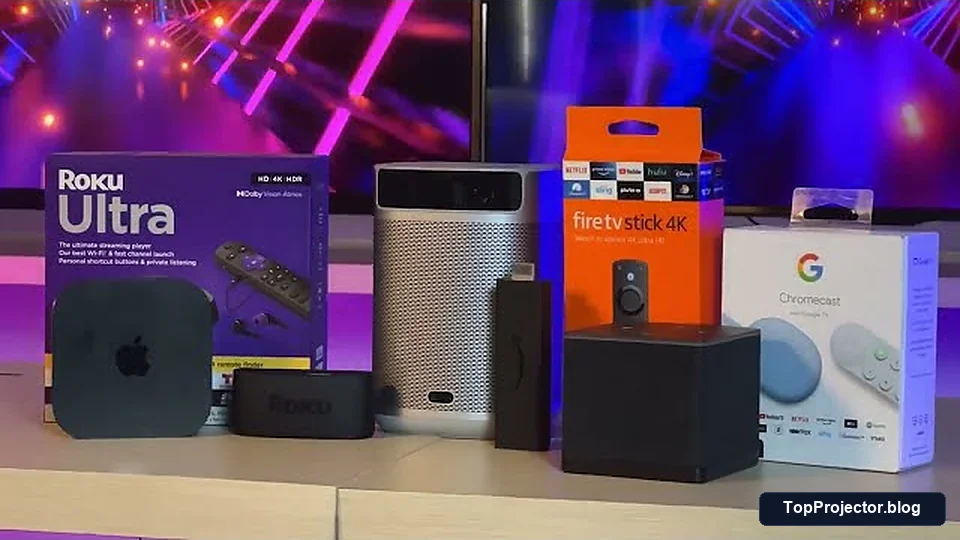
Plug your chosen streaming dongle directly into the rear HDMI 2.0 port of the XGIMI Halo. For high-end laser upgrades, read our Hisense PX3 Pro review to compare specs.
Switch the projector input source to the corresponding HDMI channel using your remote. The external device boots instantly with full platform access.
This hardware-based approach guarantees flawless DRM handling, high-bitrate audio pass-through, and effortless navigation without relying on custom APK workarounds.
- Plug external media sticks directly into rear HDMI port.
- Ensure stable power delivery via dedicated wall outlets.
- Switch projector input channel to active HDMI source.
- Enjoy fully certified high-definition streaming capabilities.
HDMI Connection Optimization and CEC Control
Enable HDMI-CEC in your projector settings menu to control your streaming stick volume and power using a single remote.
Verify that color space settings match between the streaming dongle and projector optics for accurate skin tones.
- Enable HDMI-CEC for unified remote control operations.
- Match color space outputs for accurate visual rendering.
Executing Wireless Screen Mirroring Protocols
If physical dongles are unavailable, wireless casting from a smartphone offers a viable solution. Use our screen size and viewing distance calculator before mounting your projection screen.
Ensure both your XGIMI Halo and your source device operate on the exact same high-speed Wi-Fi network to minimize packet loss and stuttering.
For iOS devices, use third-party mirroring receivers available in the app store, while Android devices utilize native Miracast or Chromecast protocols.
Keep casting distance minimal to maintain stable bitrates, preventing compression artifacts and noticeable input lag during fast-moving video sequences.
- Connect projector and source device to identical Wi-Fi networks.
- Utilize native Chromecast protocols for Android devices.
- Deploy compatible mirroring receivers for iOS screen sharing.
- Maintain close proximity to prevent wireless packet drops.
AirPlay and Chromecast Latency Management
Wireless casting inherently introduces minor audio-visual delay. Adjust playback settings on your source device if lip-sync issues arise.
Switching your wireless router to the uncongested 5GHz frequency band significantly reduces buffering interruptions during HD streaming.
- Use 5GHz Wi-Fi bands to minimize streaming latency.
- Calibrate source device audio delay if sync drifts.
Manual Sideloading Workarounds and APK Methods
Advanced users can sideload specific application package files directly onto the projector storage using a formatted USB flash drive.
Download a trusted, architecture-compatible application file onto your USB drive from a reputable source, keeping files organized within the root directory.
Insert the USB drive into the projector USB port and use a file manager application to locate and execute the installer package.
Accept unknown source warnings with caution, ensuring your downloaded file remains secure and free from unwanted software alterations.
- Format USB drives to FAT32 or exFAT for maximum compatibility.
- Download architecture-appropriate APK files from trusted sources.
- Enable installation from unknown sources in security settings.
- Use built-in file managers to execute the installer package.
Handling Security Prompts and File Managers
Android TV security policies require manual authorization when installing untrusted apps. Navigate to system security to toggle permissions.
Install a reliable file explorer from the official app store to easily locate and execute your saved installation packages.
- Authorize untrusted installations in system security menus.
- Utilize dedicated file explorers for easy navigation.
Optimizing Color Calibration and Optical Focus
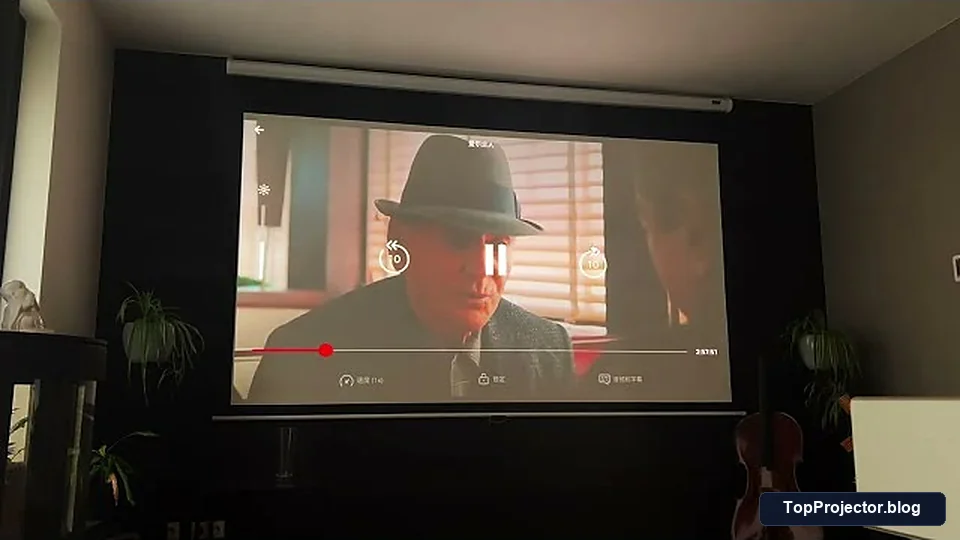
Achieving cinematic image quality requires proper optical adjustment of your projector lens, especially when dealing with compressed streaming sources.
Utilize the automatic focus and keystone correction features, but verify geometry manually for razor-sharp edge-to-edge text clarity.
Select a dedicated movie or custom picture mode to optimize contrast ratios, ensuring dark shadow details remain visible in dimly lit rooms.
Pair your setup with a high-gain matte white projection screen to maximize the impact of the projector's 600 ANSI lumen output.
- Fine-tune manual focus for optimal text and edge clarity.
- Calibrate custom picture modes for superior shadow detail.
- Pair projection surfaces with appropriate gain ratings.
- Control ambient room light to enhance perceived contrast.
Contrast Ratios and Room Lighting
Portable LED projectors perform best in controlled lighting environments. Darken your viewing space to maximize black level depth.
Avoid direct window glare falling onto your projection surface to prevent washed-out highlights and degraded color fidelity.
- Darken rooms to enhance perceived black levels.
- Eliminate ambient window glare near screen surfaces.
Audio Synchronization and External Sound Systems
While the built-in Harman Kardon speakers offer respectable sound quality, serious home theater setups demand robust external audio solutions.
Connect external soundbars or AV receivers using the Bluetooth 5.0 protocol or an auxiliary audio cable plugged into the headphone jack.
Check audio delay settings within your media player or streaming stick to eliminate frustrating lip-sync errors during dialogue-heavy scenes.
High-bitrate Dolby audio pass-through ensures immersive soundscapes that match the visual brilliance of your newly configured streaming environment.
- Connect external sound systems via Bluetooth 5.0 or auxiliary.
- Adjust audio delay settings to eliminate lip-sync drift.
- Ensure high-bitrate audio pass-through is enabled.
- Test surround sound separation using multi-channel movie clips.
Bluetooth Audio Pairing and Latency
Wireless audio transmitters can introduce minor transmission delay. Opt for wired auxiliary connections when absolute synchronization is required.
Keep wireless soundbars within close range of the projector to maintain stable signal integrity without intermittent dropouts.
- Use wired auxiliary cables for zero-latency audio.
- Keep Bluetooth speakers close to maintain stable signals.
Frequently Asked Questions
Why doesn't Netflix appear in the XGIMI Halo app store?
Native app visibility is restricted due to specific platform DRM certification requirements on older Android TV builds. Use Desktop Manager or an external media stick to bypass this limitation.
Can I use a standard USB mouse to navigate sideloaded apps?
Yes, plugging a USB or wireless mouse into the projector helps navigate apps designed for touchscreens. Connect a USB receiver to access cursor controls easily.
Does wireless casting support full 1080p video streaming?
Wireless casting can struggle with high bitrates, often causing compression artifacts or stuttering. A dedicated streaming stick provides much more stable playback quality.
How do I fix audio out-of-sync issues while streaming?
Check your media player or external soundbar settings for an audio delay offset slider. Adjusting this parameter by 50 to 100 milliseconds usually resolves sync errors.
What is the best way to clean the projector lens?
Always use a clean microfibers cloth specifically designed for optical glass elements. Never apply liquid cleaning solutions directly onto the lens surface to avoid internal seepage.