How to Watch Netflix on a Projector?
Connecting a streaming source to your projection system requires understanding digital rights management and signal bandwidth. Proper configuration ensures pristine 1080p or 4K playback on large cinema screens.
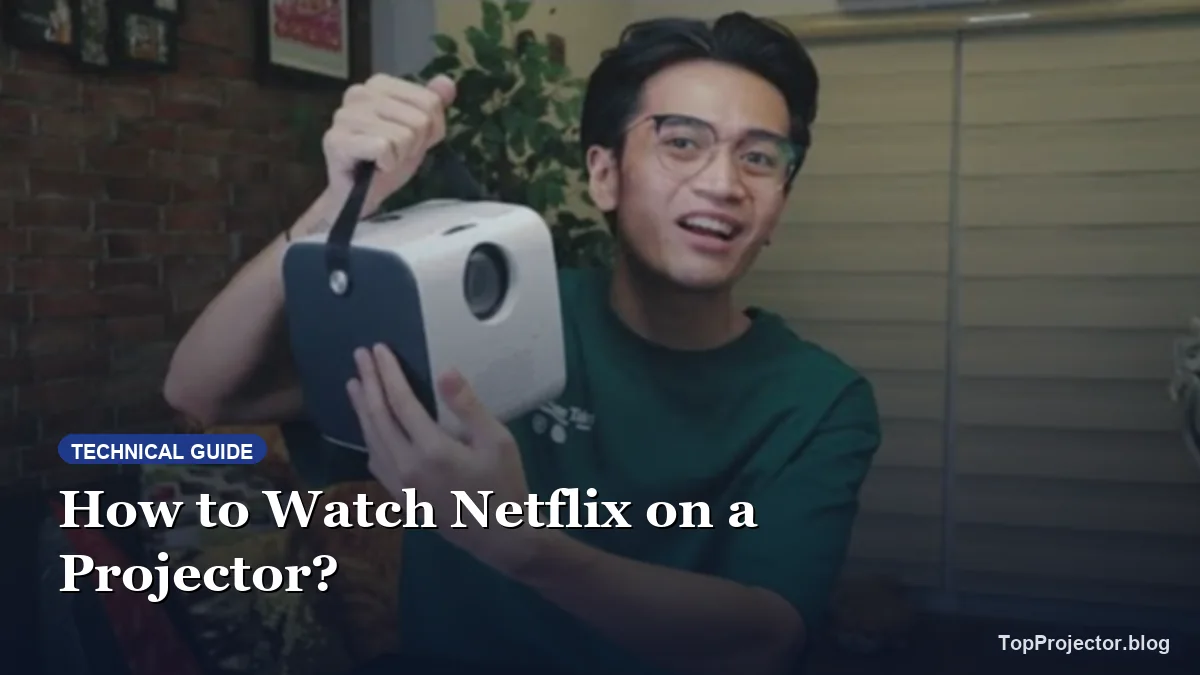
Always use a dedicated streaming stick plugged into an HDMI port to guarantee reliable, high-resolution Netflix playback without HDCP errors.
Ready to compare verified models? Start with our Best Projector To Watch Movies: Top Home Theater Picks.
Practical Quick-Reference Table
| Scenario / Metric | Recommended Target | Why It Matters |
|---|---|---|
| External Streaming Stick | Roku, Fire TV, Apple TV | Ensures official DRM support |
| HDMI Interface | HDMI 2.0 with HDCP 2.2 | Allows uncompressed 4K video transfer |
| Native Resolution | 1920x1080 or 3840x2160 | Preserves sharp pixel mapping |
| Audio Output | eARC / Optical SPDIF | Delivers lossless Dolby Atmos surround |
| Wireless Casting | AirPlay / Miracast 5GHz | Minimizes stutter during video streaming |
| Throw Distance | Calculated via throw ratio | Optimizes image brightness and contrast |
Verifying Hardware Capabilities And Netflix Certification Standards
Projector owners frequently encounter unexpected playback roadblocks when attempting to stream premium content. Netflix enforces strict digital rights management protocols across every connected playback device.
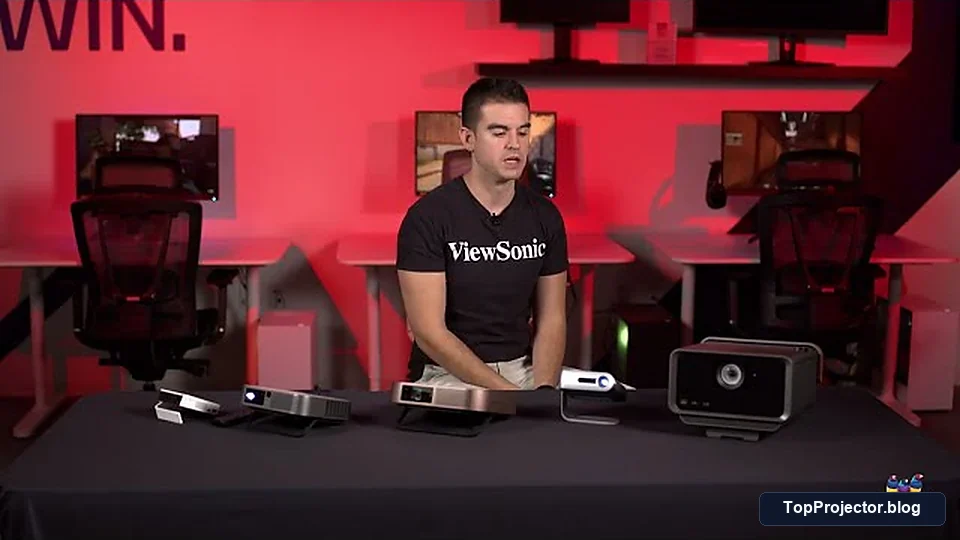
Standard projectors often lack the hardware-level security chips required for high-definition streaming. Without official platform certification, your projection system might drop to standard definition or fail completely.
Reviewing your hardware manual helps clarify whether your model supports protected content streams. Many portable projectors feature generic Android builds that lack native, certified Netflix integration entirely.
Understanding these foundational limitations prevents hours of frustrating troubleshooting and wasted setup time. Always audit your optical throw and software ecosystem before launching a movie night.
Native Netflix certification requires a strict Widevine L1 security license to output true 1080p or 4K streams. Unlicensed budget projectors drop down to 480p standard definition automatically.
- Check for official Netflix certification in specs.
- Verify HDCP 2.2 compliance on HDMI ports.
- Confirm native display resolution capabilities.
- Inspect operating system build version numbers.
- Verify official Google TV or Android TV licensing via device manifest files before purchasing.
- Check for native HDCP 2.2 handshake compliance to prevent HD streaming blackouts.
Understanding Official DRM Licensing Requirements
Digital rights management safeguards copyrighted media from unauthorized piracy during transmission. Netflix requires hardware-based decryption blocks inside the display or streaming source.
If your projector lacks secure enclaves, streaming apps block playback entirely. Pairing external hardware or choosing options from our best 4k projector for gaming guide ensures seamless high-bandwidth compatibility.
- DRM protects streams from illegal capture.
- External dongles bypass projector software gaps.
Decoding HDCP and DRM Optical Handshakes
Secure Digital Rights Management protocols demand complete HDCP 2.2 encryption across your entire signal chain. A single legacy HDMI cable can trigger fatal handshake failures during playback.
- Inspect your AV receiver or soundbar for passthrough support.
- Upgrade all interconnects to certified Ultra High Speed variants.
Deploying Dedicated External HDMI Streaming Media Players
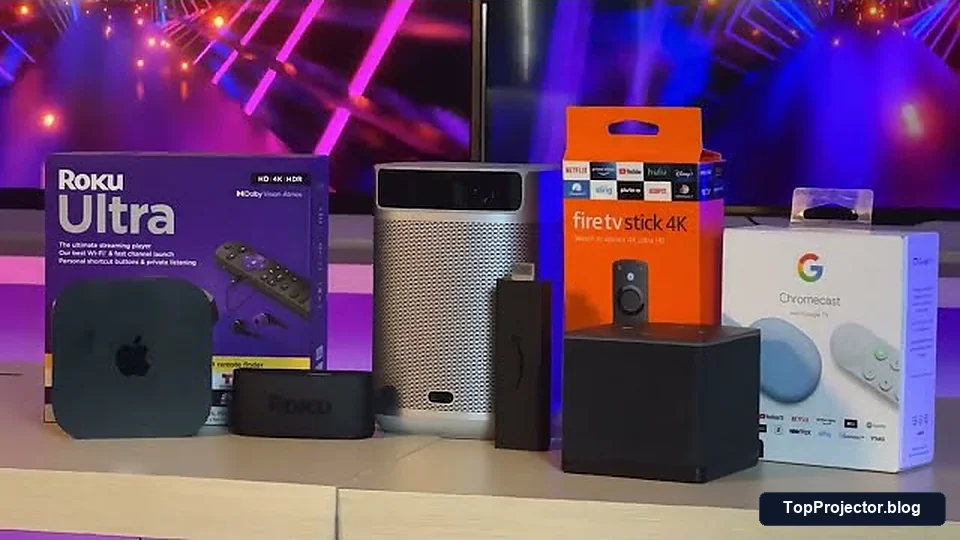
Connecting an external streaming device remains the most reliable method for cinematic projection. Compact options like those analyzed in our Nebula Capsule 3 review deliver certified Netflix applications without glitches.
Plug your streaming media player directly into the primary HDMI input port. Ensure the projector switches its active input channel to match the designated port.
These dedicated hardware solutions handle complex audio decodings and video scaling independently. Your projector simply displays the polished, high-bitrate signal without processing strain.
Power the streaming stick using an independent wall adapter rather than USB ports. Many projector USB ports lack sufficient amperage to maintain stable streaming performance.
Connecting an external streaming stick bypasses unreliable projector firmware limitations instantly. Ensure your chosen hardware supports Dolby Vision and HDR10 for optimal contrast delivery on large screens.
- Use certified media players for stability.
- Connect directly to primary HDMI ports.
- Power dongles via wall adapters.
- Select correct input source on projector.
- Plug media players directly into HDMI 2.1 ports for low input lag.
- Power external sticks via dedicated wall adapters rather than USB ports.
Managing HDCP 2.2 Handshakes And 4K HDR Passthrough
High-bandwidth digital content protection secures the pipeline between your player and projector. Both devices must handshake successfully to pass encrypted 4K streams.
Outdated cables or switchers often break this secure handshake, causing blank screens. Always use certified high-speed HDMI cables rated for full 18Gbps bandwidth.
- HDCP handshakes require end-to-end compliance.
- Upgrade cables to high-speed variants.
Optimizing HDMI Port Bandwidth for 4K HDR
Projectors often feature mixed HDMI port specifications where only HDMI Port 1 handles full 18Gbps bandwidth. Always route your high-end media streamer into this primary input.
- Enable enhanced signal format in projector settings.
- Disable CEC controls if HDMI handshakes become unstable.
Video Walkthrough: Streaming Netflix on XGIMI Projector - It's Easier than You Think
Navigating Built-In Smart Projector Operating Systems
Some modern smart projectors feature integrated operating systems with pre-installed streaming apps. Before mounting, use our throw distance calculator tool to achieve ideal screen geometry and image size.
However, built-in apps frequently run older software versions that lack critical security updates. You may experience lower video bitrates or missing surround sound codecs.
Navigate the projector home screen to locate the app store or marketplace. Search for the streaming application and follow onscreen prompts to complete installation.
Log into your subscriber account using the onscreen virtual keyboard or mobile pairing. Ensure your projector maintains a strong Wi-Fi connection for buffer-free playback.
Native Android TV interfaces demand frequent cache clearing to prevent Netflix app crashes. Maintain at least 2GB of free storage to ensure smooth buffer management during playback.
- Access built-in app store menus.
- Log in via virtual keyboards.
- Maintain stable Wi-Fi signal strength.
- Update projector firmware regularly.
- Force close background streaming apps to free up system memory.
- Check for silent firmware updates in the system settings menu.
Sideloading Workarounds Versus Official App Store Support
Advanced users sometimes attempt sideloading unofficial mobile APK files onto smart projectors. This method often results in distorted user interfaces and broken remote control navigation.
Mouse peripherals become necessary to navigate unoptimized mobile interfaces on massive screens. Official app store versions provide far superior stability and remote compatibility.
- Sideloaded apps lack proper remote support.
- Official apps guarantee smooth navigation.
Managing Smart Projector Storage and RAM
Low RAM environments cause Netflix to drop resolution dynamically to prevent out-of-memory errors. Restart your smart projector weekly to purge leaked memory and restore stable performance.
- Clear application caches every month.
- Uninstall unused streaming applications to optimize performance.
Executing Wireless Screen Casting And Device Mirroring Protocols
Casting content wirelessly offers a flexible alternative to physical cables. Reviewing specifications via our Sony projector calculator guide helps you maintain stable wireless connectivity throughout the room.
AirPlay works seamlessly with compatible Apple-certified smart projectors and streaming receivers. Android users can utilize built-in Miracast or Google Cast protocols for media mirroring.
Open the streaming app on your mobile device and tap the cast icon. Select your home projector from the available network device list to begin streaming.
Wireless casting introduces slight latency and compression artifacts during high-motion scenes. Hardwired connections remain superior for critical home theater viewing experiences.
Wireless casting introduces significant audio-video sync drift due to high packet latency. Direct screen mirroring protocols rarely maintain stable 60Hz framerates required for cinematic viewing.
- Connect devices to identical Wi-Fi networks.
- Use AirPlay or Google Cast protocols.
- Select projector from cast menu options.
- Expect minor wireless latency issues.
- Avoid 2.4GHz Wi-Fi bands for casting high-definition video content.
- Utilize dedicated hardware transmitters for zero-latency screen mirroring.
Overcoming HDCP Blockades During Mobile Phone Casting
Protected media streams often display black screens when mirrored from mobile phones. Digital rights management protocols actively block unauthorized wireless screen duplication.
Utilizing a dedicated hardware streaming stick completely bypasses these annoying mobile casting blocks. Direct HDMI connections remain immune to wireless DRM restrictions.
- DRM blocks unauthorized screen mirroring.
- Use direct HDMI to avoid blocks.
Overcoming Wi-Fi Bandwidth Bottlenecks
Connect your projector to a 5GHz network or use a direct Ethernet drop to eliminate dropped frames. Crowded wireless channels destroy bitrate stability during peak streaming hours.
- Position wireless routers within direct line of sight.
- Switch to wired connections for uninterrupted 4K streaming.
Video Walkthrough: HOW TO AirPlay Netflix, Prime, Disney+ to Projector?
Calibrating Optical Path And Audio Performance For Streaming
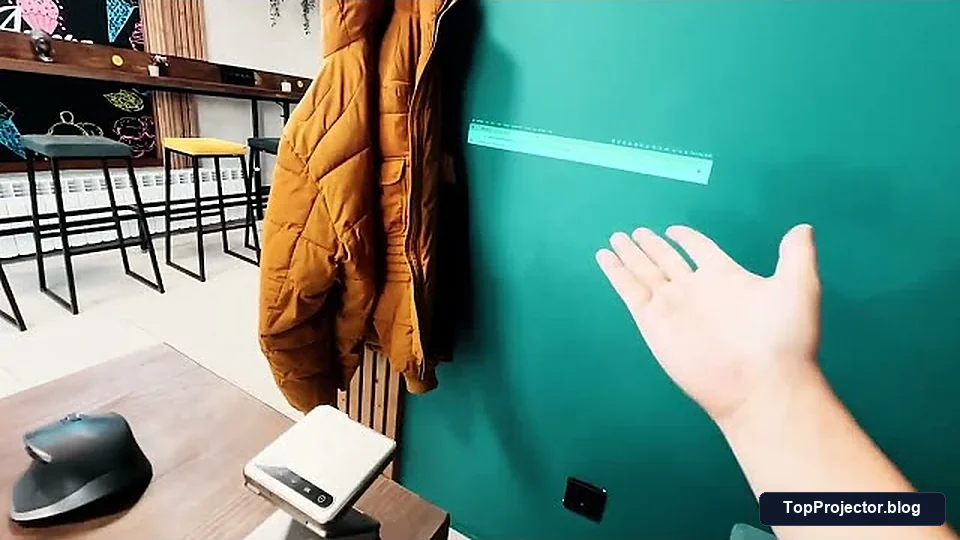
Large projection screens amplify video compression artifacts present in digital streaming sources. Adjust your projector picture settings to soften blocky macroblocks in dark scenes.
Calibrate brightness and contrast ratios based on your room ambient lighting conditions. Dedicated home theaters benefit from deep black levels, while living rooms need higher lumen output.
Audio synchronization issues frequently plague projector setups due to long cable runs. Route your audio through an external AV receiver or soundbar for optimal lip-sync accuracy.
Enable Dolby Digital passthrough to enjoy multi-channel surround sound during movie playback. Avoid relying on weak internal projector speakers for immersive cinematic experiences.
Projector optical paths require precise focus adjustments to render compressed streaming text clearly. Adjust your lens shift carefully to avoid digital keystone distortion that ruins pixel mapping.
- Adjust contrast for dark scene clarity.
- Calibrate lumen output for room lighting.
- Route audio through external soundbars.
- Enable Dolby Digital audio passthrough.
- Calibrate white balance settings for accurate cinematic color reproduction.
- Enable filmmaker mode to turn off artificial motion smoothing effects.
Optimizing Color Profiles And Gamma Curves
Streaming compression heavily targets shadow details in dark movie sequences. Fine-tuning your projector gamma curve restores lost shadow detail without washing out highlights.
Selecting warm color temperature presets delivers more cinematic skin tones. Avoid overly cool picture presets that introduce artificial blue tints onto white projection screens.
- Tuning gamma curves reveals shadow details.
- Warm color presets improve skin tones.
Audio Delay and Lip Sync Correction
Bluetooth audio transmitters add up to 200ms of latency during wireless movie playback. Route audio through an AV receiver using eARC to maintain perfect lip sync.
- Adjust audio delay settings in your projector menu.
- Use optical cables for reliable lossless audio transmission.
Troubleshooting Common Playback Errors And Connection Failures
Persistent error codes usually indicate network congestion or outdated device firmware versions. Restart both your projector and streaming media player to clear temporary memory caches.
Blank screen issues typically point toward faulty HDMI cables or mismatched HDCP handshakes. Swap out questionable cables with certified high-speed alternatives to restore video signal.
Audio dropouts during playback require checking your digital output format settings. Force your streaming stick to output standard stereo if multichannel codecs fail.
Consult your manufacturer support documentation when encountering persistent hardware malfunction codes. Routine maintenance ensures long-term reliability for your home theater projection system.
Black screen errors during Netflix playback typically indicate a broken HDCP handshake. Power cycling your entire projection rig resets the digital security certificates instantly and fixes bugs.
- Restart devices to clear memory caches.
- Replace faulty high-speed HDMI cables.
- Adjust audio output format settings.
- Consult manufacturer support documentation.
- Check internet bandwidth speed using built-in diagnostic apps.
- Clear application data completely if error codes persist.
Resolving Network Bandwidth And Buffering Bottlenecks
Wireless interference can severely degrade high-bitrate 4K video streams. Connect your streaming device to an uncongested 5GHz Wi-Fi frequency band for stability.
Ethernet adapters provide absolute protection against wireless dropouts during movie playback. Hardwired network connections eliminate unexpected buffering interruptions completely.
- Switch devices to 5GHz Wi-Fi bands.
- Use ethernet adapters for stable streaming.
Resolving Persistent Audio and Video Mismatches
Persistent audio lag requires manual adjustments in your media player's audio settings. Match the audio delay parameter to your specific processing latency to ensure perfect sync.
- Update source device firmware to the latest version.
- Reset audio output formats to uncompressed stereo.
Frequently Asked Questions
Can I watch Netflix on any smart projector?
Not all smart projectors support Netflix natively due to strict DRM licensing requirements. Always check manufacturer specifications before purchasing a budget smart model.
Why is my screen black when casting Netflix from my phone?
Digital rights management protocols actively block wireless mobile mirroring of protected content. Use a dedicated streaming stick plugged into an HDMI port to bypass this restriction.
What is the best HDMI cable type for streaming 4K Netflix?
Always use a certified high-speed HDMI cable rated for at least 18Gbps bandwidth. This ensures flawless transmission of uncompressed 4K video signals without handshake failures.
How do I fix audio sync issues between my projector and soundbar?
Route your streaming device directly into the soundbar or AV receiver instead of the projector. Adjust the audio delay settings in your media player menu to fix lip-sync.
Do projector USB ports supply enough power for streaming sticks?
Many projector USB ports deliver insufficient amperage to maintain stable streaming stick operation. Always power streaming devices using an independent wall adapter for reliable performance.