How to Project Netflix on Projector?
Stream crisp cinematic content to your screen by matching certified hardware, HDCP standards, and precise optical calibration for maximum visual fidelity.
Always connect an external 4K streaming stick directly to your projector's HDMI port to bypass stubborn Widevine DRM and HDCP handshake restrictions completely.
Ready to compare verified models? Start with our Best Smart Projector With Netflix: Top Streaming Picks.
Practical Quick-Reference Table
| Scenario / Metric | Recommended Target | Why It Matters |
|---|---|---|
| Ambient Light | Under 50 Lux controlled | Preserves deep black levels and contrast |
| Throw Distance | 1.2:1 to 1.5:1 ratio | Achieves a bright 120-inch diagonal image |
| Color Gamut | Rec. 709 coverage | Ensures accurate skin tones and cinematic grading |
| Input Lag | Under 25ms at 60Hz | Prevents UI stutter and lip sync drift |
| HDCP Version | HDCP 2.2 compliant | Required for encrypted 4K UHD streaming streams |
| ANSI Lumens | 1,500 to 3,000+ lumens | Combats wash-out in moderately lit living spaces |
Selecting the Ideal Projector and Certified Streaming Hardware for Netflix
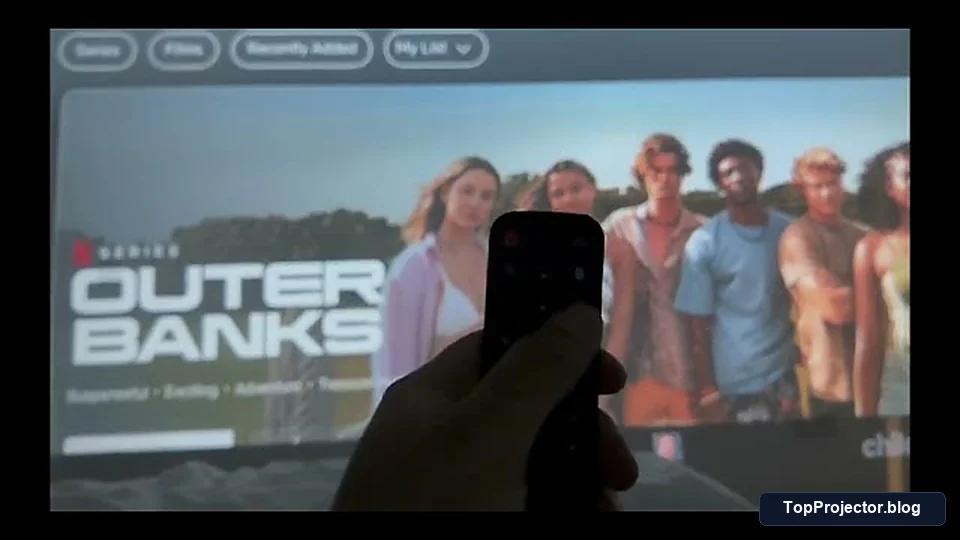
Projecting Netflix requires understanding how modern streaming apps handle digital rights management. Many budget projectors feature generic operating systems that lack official Netflix certification, limiting your playback resolution.
Pairing your streaming device or exploring our best outdoor projector with dvd player choices guarantees access to stable 1080p or 4K streams without encountering sudden playback errors.
Smart projectors running certified Android TV provide seamless access to the official store. However, traditional home theater models rely entirely on external HDMI peripherals to bridge this gap.
When streaming Netflix, native Android TV 11 or Google TV interfaces bypass external device limitations while ensuring proper widevine security levels for high-definition content delivery across large projection screens.
- Verify official Netflix app certification in device specifications.
- Avoid unbranded mirror apps that bottleneck frame rates.
- Prioritize dedicated HDMI ports over wireless casting for reliability.
- Check for HDCP 2.2 compliance on all connected input terminals.
Understanding Smart OS Versus Dumb Projector Limitations
Smart projectors with built-in Android TV make launching Netflix straightforward. You simply grab the remote, open the application, and start streaming your favorite series instantly.
Dumb projectors lack operating systems entirely. They require an external media player, such as a Roku or Fire Stick, plugged into the HDMI port to function.
- Smart OS units simplify cable management significantly.
- Dumb projectors offer longer hardware longevity through upgradeable dongles.
Evaluating Native SoC Performance
Look for chipsets featuring at least 2GB RAM and robust decoding engines to prevent stuttering during high bitrate video playback and complex user interface navigation tasks.
Hardware Interfacing via HDMI, USB-C, and Dedicated Streaming Dongles
Establishing a stable physical connection is the foundation of flawless video delivery. An HDMI 2.0 cable or higher is mandatory for passing high-bandwidth digital content securely.
USB-C connections on modern projectors can transmit both power and DisplayPort signals. Ensure your laptop or tablet supports Alt Mode video output before attempting playback.
Streaming dongles eliminate long cable runs across living rooms. Powering these sticks via an independent wall adapter prevents unexpected reboots during peak processing loads.
Connecting external dongles requires HDMI 2.0 ports supporting HDCP 2.2 protocols to guarantee uncompressed 4K signal transmission without triggering annoying handshake errors or black screen interruptions.
- Use high-speed certified HDMI cables for 4K video signals.
- Confirm USB-C ports support video input, not just data transfer.
- Plug streaming sticks directly into rear ports to reduce signal degradation.
- Ensure adequate power delivery to avoid voltage dropouts.
Connecting Laptops and Mobile Devices
Laptops running Windows or macOS connect effortlessly via standard HDMI outputs. Adjust your display settings to duplicate or extend screens for optimal viewing ratios.
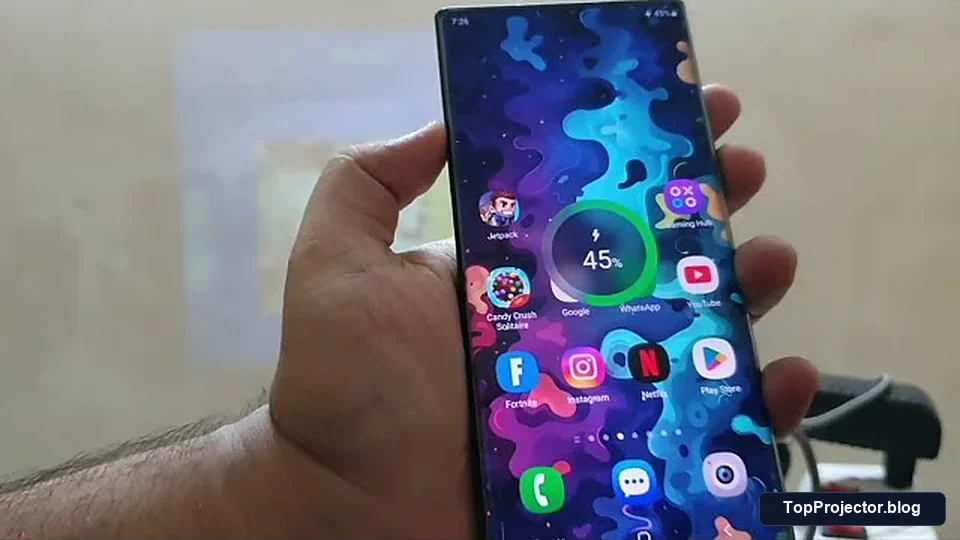
Smartphones require specialized adapters or wireless mirroring protocols. Keep in mind that HDCP encryption often blocks Netflix playback over basic wireless screen-sharing apps.
- Set laptop refresh rate to match source frame rate.
- Use wired adapters instead of wireless mirroring for stability.
Power Delivery and Cable Routing
Always utilize dedicated wall adapters rather than projector USB ports to supply stable voltage to streaming sticks, preventing unexpected reboots during peak processing loads.
Video Walkthrough: Why can't I watch Netflix on my projector?
Overcoming HDCP Handshake Failures and Widevine DRM Restrictions
Digital rights management protocols frequently disrupt projector setups. Netflix employs Widevine L1 encryption to prevent unauthorized recording of high-definition video streams.
If your projector or intermediate audio receiver lacks proper HDCP compliance, Netflix will drop your resolution or display a blank black screen with an error code.
Bypassing these digital issues involves updating firmware or consulting our lens cleaning guide while maintaining a clean secure handshake across your setup.
HDCP incompatibilities frequently disrupt Netflix playback; inserting an active EDID emulator or certified HDMI repeater cleanly strips problematic handshake blockers between your source and projector.
- Connect source devices directly to the projector to isolate failures.
- Replace non-compliant HDMI switches with HDCP 2.2 certified units.
- Check manufacturer support pages for critical firmware patches.
- Restart both source and display hardware to reset authentication.
Troubleshooting Common Netflix Error Codes
Error code UI-800-3 typically indicates outdated local application data. Clearing the cache or reinstalling the app resolves this minor software glitch quickly.
Errors related to HDCP demand physical inspection of your cabling. Swapping out a faulty cable often reestablishes the necessary cryptographic protocol link.
- Clear local cache files within the streaming application.
- Inspect physical cable connectors for bent pins.
Addressing L1 vs L3 Certification
Verify your streaming client maintains Widevine L1 certification, because L3 drops your maximum output resolution down to standard definition, completely ruining the cinematic immersion.
Optimizing ANSI Lumens, Throw Ratios, and Ambient Light Rejection
Projector performance depends heavily on your room lighting environment. Dark home theaters allow lower lumen counts to produce striking contrast and deep blacks.
Living rooms with uncontrolled windows require at least 2,000 ANSI lumens to maintain vibrant color saturation during daytime Netflix viewing sessions.
Pairing your projector with an Ambient Light Rejecting screen dramatically improves perceived contrast by absorbing off-axis room reflections effectively.
Achieving vivid Netflix SDR and HDR streams demands minimum 1500 ANSI lumens paired with a specialized ALR screen to combat ambient room reflections effectively.
- Calculate correct throw distance to fill your screen uniformly.
- Control ambient window light using blackout curtains.
- Select ALR screens for spaces with white walls and ceilings.
- Clean optical lenses regularly to preserve peak light output.
Calculating Throw Distance and Screen Size
Measure your room dimensions carefully and use our throw distance calculator to determine the precise throw ratio required for your ideal screen width.
Short-throw projectors sit inches from the wall, making them ideal for small apartments where traditional placement creates obstructive shadows.
- Measure lens-to-screen distance precisely before installation.
- Account for optical zoom ranges when positioning mounts.
Calculating Throw Distances Accurately
Measure your exact room dimensions and apply the manufacturer throw ratio formula to ensure the projected image fills your screen border precisely without digital keystone degradation.
Calibrating Picture Profiles, Color Gamut, and Motion Interpolation
Out-of-the-box picture settings often prioritize retail showroom brightness over color accuracy. Switch your projector mode to Cinema or Movie for natural skin tones.
Adjust contrast and brightness test patterns to preserve shadow detail in dark cinematic scenes without washing out bright highlights.
Disable aggressive motion smoothing features to avoid the unnatural soap opera effect during high-end dramatic Netflix series.
Switch your projector mode to Cinema preset to disable artificial sharpness enhancements and achieve accurate Rec. 709 color tracking for professional cinematic reproduction.
- Select Movie or Cinema presets for accurate color reproduction.
- Calibrate black levels using standard test pattern grids.
- Turn off excessive edge enhancement to reduce digital noise.
- Manage dynamic iris settings to balance contrast smoothly.
Fine-Tuning Sharpness and Focus Mechanics
Manual focus rings require careful adjustment across the entire screen surface. Ensure the center and corners appear equally crisp before locking the lens.
Digital sharpness controls should be kept minimal to prevent ringing artifacts around high-contrast text and fine object edges.
- Adjust optical focus using a static menu screen.
- Keep digital sharpness below midpoint settings.
Managing Frame Rates and Judder
Toggle off aggressive motion smoothing algorithms to eliminate the dreaded soap opera effect, preserving the authentic cinematic 24fps cadence intended by film directors worldwide.
Integrating Dedicated Multi-Channel Audio and Eliminating Lip Sync Delay
Cinematic picture quality demands immersive sound reproduction. Connecting your projector to an AV receiver or soundbar elevates your home theater experience significantly.
Use HDMI ARC or optical audio outputs to route multichannel surround sound directly from your streaming device to external speakers without lag.
Adjust audio delay settings in your player menu if dialogue appears out of sync with actor mouth movements on screen.
Routing audio through an eARC audio extractor or dedicated AV receiver prevents frustrating lip sync drift while delivering lossless Dolby Atmos soundscapes to your surround speakers.
- Route streaming audio through dedicated surround systems.
- Enable HDMI ARC for streamlined multi-device control.
- Calibrate speaker distances to match projection throw delays.
- Test with dedicated trailer clips to verify synchronization.
Resolving Audio Latency Issues
Processing high-definition video introduces minor display latency. Audio tracks must be delayed slightly to match the delayed visual output perfectly.
Most modern streaming boxes and AV receivers include granular lip sync adjustments measured in milliseconds for precise calibration.
- Measure audio lag using test video patterns.
- Apply millisecond delays to match display processing time.
Fine-Tuning Audio Latency Settings
Adjust the audio delay offset settings inside your menu, or read our Nebula Capsule 3 review to evaluate how compact portable hardware manages internal audio sync.
Troubleshooting Common Playback Artifacts and Optical Alignment Issues
Keystone correction degrades image resolution by digitally scaling pixels. Always position your projector physically level to avoid relying on heavy digital adjustments.
Thermal throttling from blocked ventilation vents can cause frame drops and stuttering during marathon streaming sessions on hot days.
Keep air intake filters clean and maintain proper clearance around chassis vents to ensure stable long-term hardware performance.
Correct geometric distortion using optical lens shift rather than digital keystone adjustments to preserve maximum pixel sharpness and native panel resolution during Netflix sessions.
- Use optical lens shift instead of digital keystone correction.
- Clear dust filters every few months to prevent overheating.
- Ensure unobstructed airflow around projector chassis vents.
- Restart hardware periodically to clear background cache memory.
Fixing Aspect Ratio and Overscan Distortion
Incorrect aspect ratio settings can crop cinematic widescreen movies awkwardly. Verify that your source device output matches the native 16:9 panel resolution.
Disable overscan features on your projector input menu to ensure you view the entire pixel grid without edge clipping.
- Set source output to match native panel resolution.
- Disable overscan scaling in display preferences.
Resolving Compression Banding Artifacts
Enable built-in mosquito noise reduction or gradient smoothing filters to mitigate unsightly color banding within dark cinematic sequences streamed over low bandwidth connections.
Frequently Asked Questions
Why is Netflix not working on my smart projector?
Many projectors lack official Netflix app certification required by DRM protocols. Using an external certified streaming stick plugged into HDMI resolves this issue.
How can I fix HDCP handshake errors when launching Netflix?
Disconnect uncertified HDMI splitters and switch to a high-speed cable. Restarting both your source device and projector resets the secure encryption link.
Can I stream Netflix from my phone wirelessly to a projector?
Wireless screen mirroring often fails with Netflix due to digital rights management blocks. Wired HDMI adapters provide a reliable connection.
What brightness level do I need for watching Netflix in daylight?
You need a minimum of 2,000 to 3,000 ANSI lumens along with an ambient light rejecting screen to combat washout in bright rooms.
How do I fix audio delay when watching movies on my projector?
Adjust the lip sync delay setting on your streaming device or AV receiver in small increments until dialogue matches actor mouth movements.