How to Hook Up Bluetooth Speaker to Projector?
Connect your wireless speaker cleanly for immersive home theater audio. Avoid annoying lip-sync delays with proper technical setup.
Always verify your projector natively supports Bluetooth audio output before troubleshooting pairing failures or audio latency issues.
Ready to compare verified models? Start with our Best Speakers To Hook Up To A Projector (2026 Guide).
Practical Quick-Reference Table
| Scenario / Metric | Recommended Target | Why It Matters |
|---|---|---|
| Bluetooth Version | Bluetooth 5.0 or higher | Reduces audio dropouts and improves range. |
| Audio Codec | aptX Low Latency or AAC | Minimizes lip-sync lag during video playback. |
| Input Latency | Under 40ms processing delay | Keeps dialogue synchronized with onscreen action. |
| Speaker Distance | Within 10 feet of projector | Prevents signal interference and packet loss. |
| Audio Output | External Bluetooth Device | Routes sound away from internal tinny speakers. |
| Interference Sources | Clear of 2.4GHz Wi-Fi routers | Stops audio stuttering caused by frequency overlap. |
Evaluating Hardware Compatibility and Bluetooth Protocols
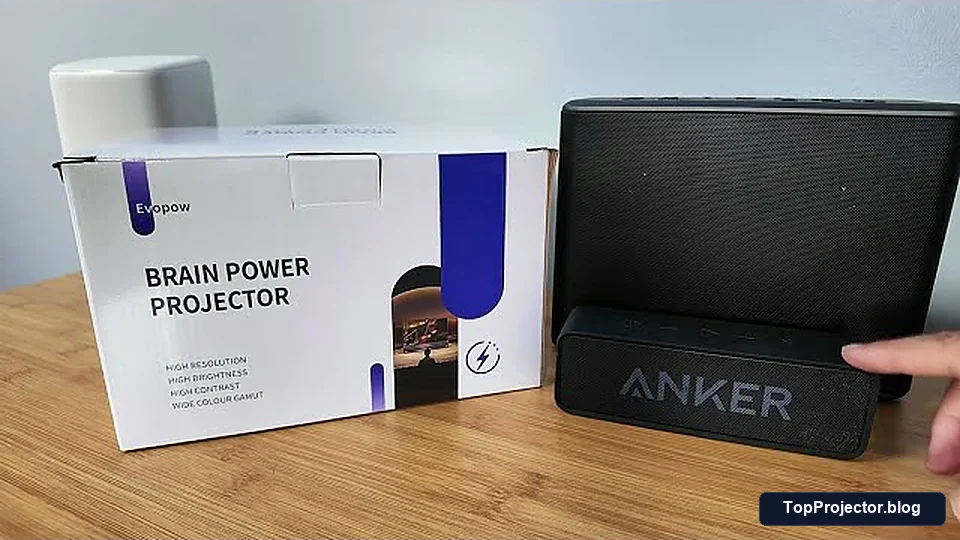
Many modern projectors feature built-in wireless modules. However, some older models only include Bluetooth for input peripherals rather than audio output, requiring careful specification review.
When planning outdoor entertainment displays like those found in our best halloween house projector guide, ensure your projector supports A2DP profile audio streaming for external speakers.
Wireless interference heavily impacts signal reliability. Keep your Bluetooth speaker away from active 2.4GHz routers and heavy metallic objects that disrupt radio waves.
Checking Bluetooth 5.0 specifications on your modern digital projector ensures significantly lower audio latency and stable wireless bandwidth before pairing external speakers for immersive movie nights.
Legacy Bluetooth 4.2 hardware frequently introduces frustrating audio delays exceeding 250 milliseconds, completely ruining fast-paced cinematic action sequences and competitive living room gaming sessions.
- Confirm the projector explicitly supports Bluetooth audio streaming.
- Check for A2DP and SBC/AAC profile compatibility.
- Ensure the speaker battery is fully charged before pairing.
- Keep other wireless devices disabled during initial setup.
Distinguishing Audio Input Versus Output Ports
Projectors marketed with smart features often support Bluetooth mice or keyboards. This input capability rarely guarantees the hardware can transmit stereo audio feeds outward.
Inspect system settings carefully for dedicated audio transmission menus. If options remain greyed out, your projector model lacks internal hardware transmitters.
- Look for transmission toggles in system menus.
- Avoid confusing input-only Bluetooth chips with output hardware.
Verifying Audio Profile Compatibility
Ensure your primary audio source device fully supports A2DP for high-quality stereo streaming alongside AVRCP for seamless remote media control functions during media playback.
Verify that both connected hardware devices share common codec architectures to prevent automatic downmixing and severe audio degradation in complex multi-channel home theater layouts.
Initiating Pairing Mode on Wireless Sound Systems
Getting your external speaker ready requires activating its discoverable state. Press and hold the Bluetooth pairing button until indicator lights flash rapidly.
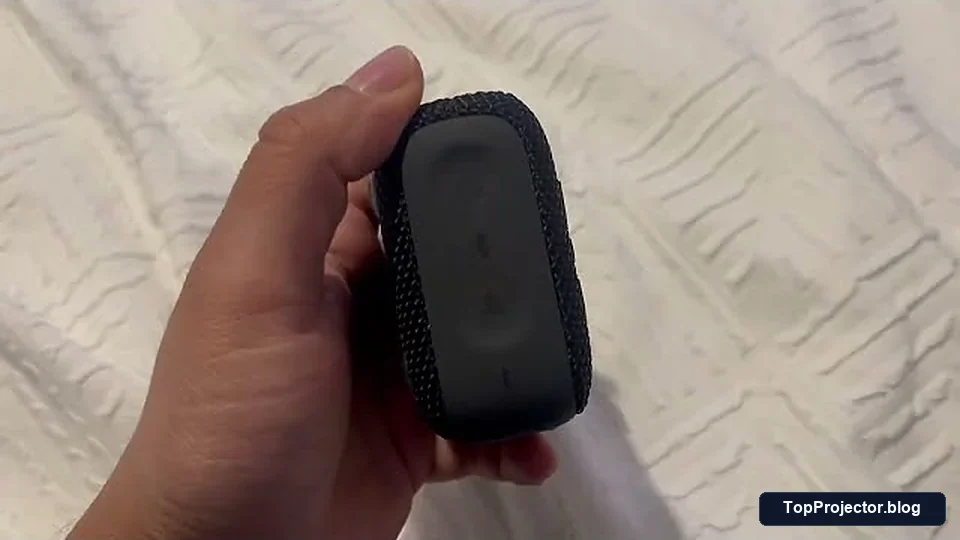
Ensure no other smartphones, laptops, or tablets are actively connected to your speaker. Active legacy connections will block the projector from recognizing the device.
Keep the speaker within three feet of the projector during the initial handshake phase to guarantee strong signal reception and successful pairing.
Activating pairing mode requires holding the dedicated Bluetooth button on your wireless speaker until the LED indicator begins flashing rapidly in an alternating pattern.
Following best practices outlined in our soundbar connection guide, avoid common pairing failures by ensuring your speaker disconnects from previous smartphones and tablets nearby.
- Hold the pairing button until LEDs flash.
- Disconnect active pairings from nearby mobile phones.
- Position the speaker close to the projector temporarily.
- Power cycle both devices if pairing stalls.
Troubleshooting Stubborn Speaker Discovery Issues
Sometimes speakers fail to broadcast their pairing beacon. Resetting the speaker back to factory default settings often resolves stubborn connection blocks instantly.
Verify that your speaker firmware is completely up to date. Outdated firmware builds frequently cause handshake failures with modern home theater gear.
- Perform a factory reset on the speaker.
- Check manufacturer websites for firmware updates.
Clearing Stored Device Memories
Many portable speakers store multiple device pairings, causing connection conflicts; hold the power and volume down buttons for ten seconds to perform a hard factory reset.
Once the memory clears, restart the pairing sequence to let your high-definition projector discover the clean wireless profile without interference from legacy paired hardware.
Video Walkthrough: How to Connect Any Bluetooth Speaker to Projector
Navigating Projector Interface Menus for Audio Sync
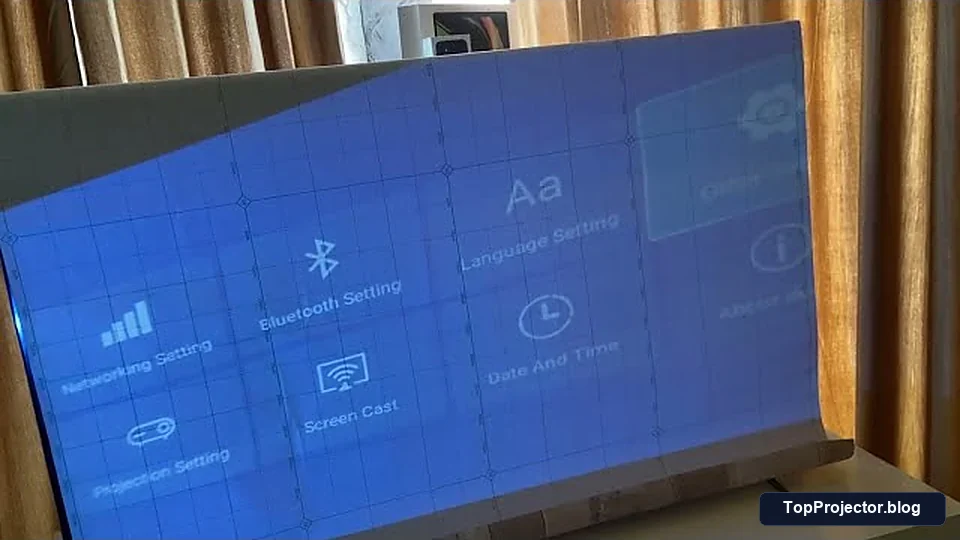
Power on your projector and use the remote to open the main settings menu. Scroll down until you locate the Network and Connectivity or Bluetooth tab.
Turn the main Bluetooth toggle from off to active status. The projector will begin scanning for nearby discoverable audio gear within range.
Select your specific speaker model from the populated list of available devices. Confirm the on-screen prompt to establish a stable wireless audio link.
Accessing the primary audio settings menu on your digital projector requires navigating past standard picture calibration controls to locate specialized wireless output configuration options.
Toggle the internal wireless transmitter from off to active state, ensuring the operating system scans continuously for nearby discoverable Bluetooth audio peripheral hardware devices.
- Open main settings using the system remote.
- Toggle the Bluetooth setting to active state.
- Select your speaker name from scanned results.
- Confirm pairing prompts on the projection screen.
Adjusting Output Routing After Successful Pairing
Once paired, navigate to the audio output submenu within the projector settings. Ensure the system defaults to external Bluetooth speaker instead of internal drivers.
Play a test video clip to verify that sound routes correctly through your wireless gear. Adjust the master volume slider to a comfortable level.
- Navigate to the audio output submenu.
- Select external Bluetooth as active driver.
Troubleshooting Hidden Menu Options
Smart models such as the unit tested in our epson 2350 review hide advanced Bluetooth settings deep inside developer menus, requiring seven rapid clicks on the build number.
Always check for pending firmware updates because hardware manufacturers frequently patch audio routing bugs and improve device handshake stability in subsequent software release patches.
Overcoming Common Audio Latency and Interference Hurdles
Bluetooth audio transmission naturally introduces a slight processing delay. This manifests as lip-sync error, where dialogue visually lags behind actors' mouth movements.
Check if your projector software includes an audio delay compensation slider. Adjusting this parameter in milliseconds helps realign sound with projected video frames.
Physical obstructions between the projector and speaker degrade signal quality. Maintain a clear line of sight to eliminate audio popping and sudden dropouts.
Audio lag ruins cinematic immersion, making lips out of sync with dialogue; carefully adjust the audio delay offset slider within your main projector settings.
Severe wireless interference from local 2.4GHz Wi-Fi routers and household microwave ovens frequently disrupts Bluetooth signals, causing noticeable audio drops during critical movie scenes.
- Identify potential lip-sync lag during movie playback.
- Utilize built-in audio delay sliders to sync tracks.
- Remove physical obstacles blocking the wireless signal.
- Switch to wired connections if latency remains unmanageable.
Minimizing Interference from Household Electronics
Microwave ovens and thick concrete walls severely degrade wireless signal integrity. Keep your speaker placement well away from heavy electromagnetic interference sources.
Switching your home Wi-Fi network from the crowded 2.4GHz band to the cleaner 5GHz band clears up local airwaves for your audio stream.
- Keep speakers away from active microwaves.
- Migrate home Wi-Fi traffic to 5GHz bands.
Mitigating RF Bandwidth Congestion
Switch your home wireless network access devices to the 5GHz frequency band to clear up local airwaves and ensure uninterrupted Bluetooth audio streaming performance.
Keep your wireless Bluetooth speaker positioned well within ten feet of the projector to maintain a strong line of sight and minimize packet loss.
Video Walkthrough: How to get better sound from your projector
Alternative Audio Routing Solutions for Lag-Free Playback
If Bluetooth latency proves impossible to eliminate, consider connecting your speaker directly to the source device. Plug into your streaming box audio out port instead.
Using a dedicated HDMI audio extractor routes pristine digital sound straight to your soundbar while passing clean video feeds directly into the projector lens.
Auxiliary audio cables offer zero latency performance for critical movie viewings. Traditional wired setups completely bypass wireless packet transmission delays.
When Bluetooth latency proves entirely insurmountable for competitive gaming setups, routing audio through an HDMI eARC extractor provides lossless uncompressed sound transmission channels.
Alternatively, connecting a dedicated low-latency wireless transmitter directly to the analog projector audio out port bypasses internal processing bottlenecks completely for fast-paced gamers.
- Connect speakers directly to streaming media sticks.
- Deploy HDMI audio extractors for zero-lag sound.
- Use auxiliary cables for absolute synchronization.
- Avoid wireless overhead during competitive gaming sessions.
Utilizing AV Receivers for Complex Sound Systems
Routing all video and audio sources through a dedicated AV receiver solves syncing headaches. The receiver handles sound processing before forwarding video to the projector.
This centralized architecture allows you to connect high-end multichannel speakers without relying on the projector's limited internal audio hardware.
- Route sources through a dedicated AV receiver.
- Bypass projector audio processing limitations entirely.
Utilizing Optical Audio Converters
An external optical TOSLINK cable run from your source media player to a wireless transmitter eliminates projector processing lag entirely for pristine movie audio.
This efficient hardware bypass method ensures your projector focuses strictly on throwing a sharp image while external devices handle high-fidelity multi-channel audio decoding processes.
Advanced Calibration and Codec Optimization Strategies
Understanding audio codecs helps achieve superior sound quality. Advanced codecs like aptX HD deliver higher bitrate audio compared to standard SBC profiles.
Check both your projector and speaker specifications to see if high-resolution codecs are supported. Enabling superior codecs drastically reduces audio compression artifacts.
Fine-tune equalization settings on your speaker to match movie soundtracks. Boosting dialogue clarity compensates for the acoustic challenges of open media rooms.
Advanced modern home theater enthusiasts can force specific audio codecs like aptX Low Latency through hidden developer menus to achieve sub-40ms synchronization thresholds.
Carefully matching your projector and speaker codec capabilities prevents the operating system from defaulting to lower-tier compressed formats that degrade overall sound staging quality.
- Verify support for high-bitrate audio codecs.
- Prioritize aptX or AAC over basic SBC profiles.
- Adjust speaker EQ settings for clear movie dialogue.
- Test different source files to confirm clean output.
Finalizing Your Home Theater Audio Configuration
Run a comprehensive audio test suite to lock in your settings. Verify that surround downmixing functions properly when playing multi-channel movie tracks.
Save your custom audio delay profiles if your projector allows preset storage. Proper calibration guarantees an immersive cinematic experience every single night.
- Run full multi-channel audio test suites.
- Save custom delay presets for future sessions.
Fine-Tuning Equalizer Presets
While evaluating your space using our lumens room calculator, remember to adjust the parametric equalizer settings on your companion app to combat hard wall reflections.
Thoroughly testing dialogue clarity using specialized movie test audio clips ensures your final wireless configuration delivers crisp vocals alongside deep cinematic bass impact.
Frequently Asked Questions
Why is there a noticeable audio delay when using a Bluetooth speaker with my projector?
Wireless data packet transmission introduces inherent processing lag. Adjusting the audio sync offset slider in your projector settings usually corrects this delay.
What should I do if my projector does not detect my Bluetooth speaker during pairing mode?
Verify that your speaker is actively broadcasting its discovery beacon and not connected elsewhere. Power cycling both devices restores wireless scanning functions reliably.
Can I connect multiple Bluetooth speakers to a single home theater projector simultaneously?
Most consumer projectors limit audio output to a single active Bluetooth device. Connecting multiple speakers requires an external audio transmitter or receiver.
Does using Bluetooth audio reduce the overall picture quality of my projected movie?
Wireless audio transmission operates independently from video processing pipelines. Your resolution and brightness metrics remain entirely unaffected by Bluetooth pairing.
Are there better alternatives to Bluetooth for connecting external speakers to a projector?
Wired connections like optical cables or HDMI ARC eliminate wireless latency completely. These wired pathways provide robust, lossless audio for serious movie watchers.