How to Connect Xgimi to Laptop?
Master direct HDMI, USB-C, and wireless casting methods for your XGIMI projector. Ensure sharp, lag-free display performance.
Connecting a laptop to your XGIMI projector requires matching the correct physical port and selecting the appropriate display mode for optimal refresh rates.
Ready to compare verified models? Start with our Best Laptop Projector For Movies: Top Cinematic Picks.
Practical Quick-Reference Table
| Scenario / Metric | Recommended Target | Why It Matters |
|---|---|---|
| HDMI 2.0 Connection | 4K at 60Hz / 1080p 120Hz | Lowest input lag for gaming. |
| USB-C Alternate Mode | DisplayPort 1.4 protocol | Clean single-cable power and video. |
| Wireless Miracast | 1080p resolution at 30Hz | Convenient cable-free casting options. |
| Windows Display Mode | Win + P shortcut toggle | Fast and reliable workspace extension. |
| macOS Retina Scaling | Native resolution matching | Crisp desktop text and image reproduction. |
| Keystone Correction | Auto vertical and horizontal | Maintains perfect geometry alignment. |
Essential Hardware Requirements and Cable Selection
Before linking your laptop, inspect your physical hardware ports. Most modern XGIMI projectors feature HDMI 2.0 or HDMI 2.1 ports capable of handling high bandwidth signals.
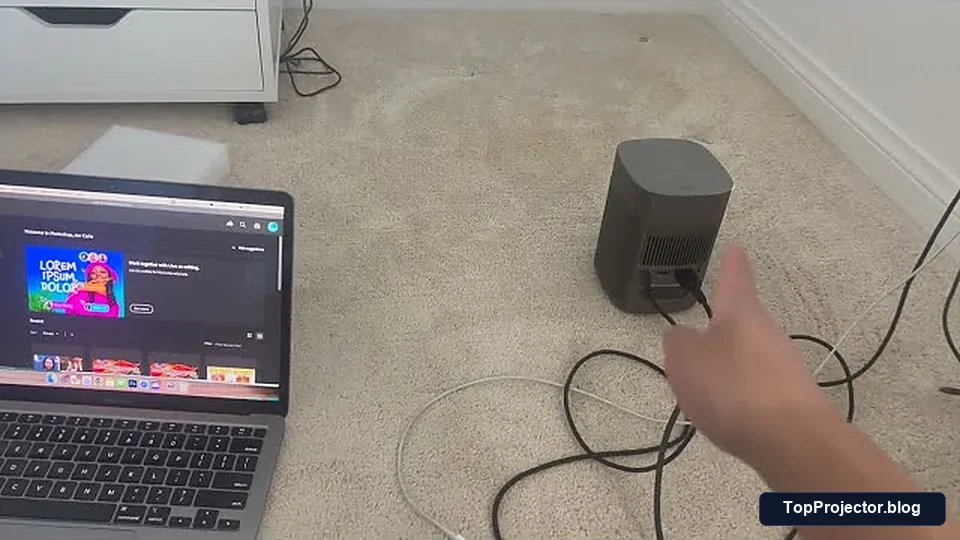
Using a certified cable prevents signal dropouts. After confirming your video bandwidth, you can test setup requirements using our ANSI lumens room calculator for optimal brightness matching.
Inspect your laptop output ports carefully. Dedicated graphics cards usually provide full-sized HDMI outputs, while ultraportable laptops often rely exclusively on compact USB-C ports.
- Verify your laptop output port supports video transmission protocols.
- Use certified premium high-speed HDMI cables for stable signal integrity.
- Check projector input specifications to match maximum supported refresh rates.
- Keep cable lengths under fifteen feet to avoid signal degradation.
Understanding Port Bandwidth Limits
Older HDMI 1.4 standards limit your resolution to 30Hz at 4K. Upgrading your interconnect ensures smooth cursor tracking and responsive gaming performance.
Always plug your primary source directly into the primary HDMI ARC port for seamless audio return channel functionality during movie sessions.
- HDMI 2.0 supports 18Gbps bandwidth for 4K 60Hz content.
- Avoid cheap passive adapters that degrade signal bandwidth.
Certified Cable Bandwidth Requirements
When connecting high-refresh laptops to XGIMI projectors, always demand Ultra High Speed HDMI cables supporting 48Gbps bandwidth to prevent blank screens or signal drops during 4K playback.
Step-by-Step Wired Connection Using HDMI
Power on both your laptop and your XGIMI projector before initiating the link. Choosing our recommended best affordable wifi projector requires checking these exact physical connection standards.
Insert the opposite end of the cable into the designated HDMI input on your projector. Listen for a firm mechanical click ensuring proper contact.
Grab your projector remote control and press the source button. Navigate the on-screen menu to select your active HDMI channel from the list.
- Turn on devices in the correct sequence to prevent handshake errors.
- Securely seat the HDMI connector to avoid intermittent black screens.
- Select the correct HDMI source number matching your physical port.
- Allow a few seconds for the EDID handshake to complete successfully.
Resolving Initial Handshake Failures
If your projector displays no signal, try unplugging and reconnecting the cable. This forces the devices to re-establish an HDCP cryptographic handshake.
Restarting both systems often resolves stubborn display detection issues caused by stuck graphics driver states in your operating system.
- Power cycle both devices if no image appears instantly.
- Check for loose physical connections at both ends.
Audio Pass-Through and EDID Handshake
Force your operating system to recognize the XGIMI audio driver by toggling the EDID handshake setting inside your graphics control panel, ensuring multichannel LPCM routes correctly.
Video Walkthrough: Wireless mirroring via PC---#XGIMIHomeProjector#H2#Z6
Utilizing USB-C and Alternate Display Modes
Many advanced XGIMI models feature USB-C ports supporting DisplayPort Alternate Mode. This allows a single cable to handle both power delivery and video output.
Ensure your laptop USB-C port is fully video-capable. As noted in our Epson 2350 review, standard data-only ports will fail to transmit any visual signal.
Connect a certified Thunderbolt or video-rated USB-C cable between devices. Your projector should automatically detect the stream and display your desktop.
- Confirm your laptop USB-C port supports video output specifications.
- Use cables rated for DisplayPort Alt Mode to ensure stability.
- Enjoy simultaneous laptop charging while projecting your desktop workspace.
- Check manufacturer specifications for power delivery wattage limits.
Troubleshooting USB-C Video Streams
If the screen remains black, verify your USB-C cable specifications. Cheap charging cables lack the internal data lanes required for video transmission.
Install any missing manufacturer chipset drivers to enable full Alt Mode functionality on your laptop operating system.
- Replace uncertified charging cables with video-rated alternatives.
- Update thunderbolt software and graphics drivers regularly.
DisplayPort Alt Mode Power Delivery
Verify your laptop port supports DisplayPort Alt Mode alongside Power Delivery 65W specs to simultaneously charge your computer while transmitting pristine uncompressed video signals to the projector.
Configuring Windows and macOS Display Settings
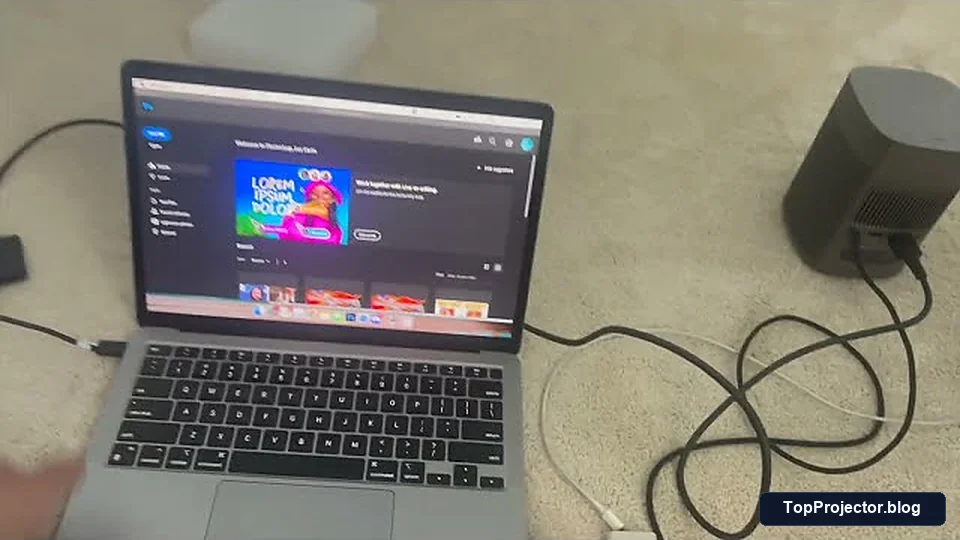
Once connected, press the Windows key plus P shortcut on Windows laptops. This opens a quick menu allowing you to duplicate or extend your display.
Select 'Extend' to use your XGIMI projector as a secondary monitor. Before final placement, consult our projector throw distance guide to secure the correct screen size.
For macOS users, navigate to System Settings and open the Displays panel. Choose your projector and adjust the refresh rate settings manually.
- Use Win + P on Windows to quickly switch projection modes.
- Select extend mode for a clean presentation environment.
- Match the native resolution of your projector for crisp text.
- Adjust arrangement settings to match your physical room layout.
Fine-Tuning Scaling and Resolution
Incorrect scaling can make desktop icons appear blurry on large projection screens. Adjust your display scaling factor to 100 percent for sharpest fidelity.
Verify that your output resolution matches the native panel resolution of your specific XGIMI projector model to eliminate scaling artifacts.
- Set display scaling to native levels for maximum clarity.
- Disable overscan settings within the projector menu.
Custom Refresh Rate Matching
Access advanced graphics properties to lock your refresh rate at 24Hz or 60Hz, eliminating irritating judder during cinematic playback on your massive projection screen surface.
Wireless Casting and Screen Mirroring Methods
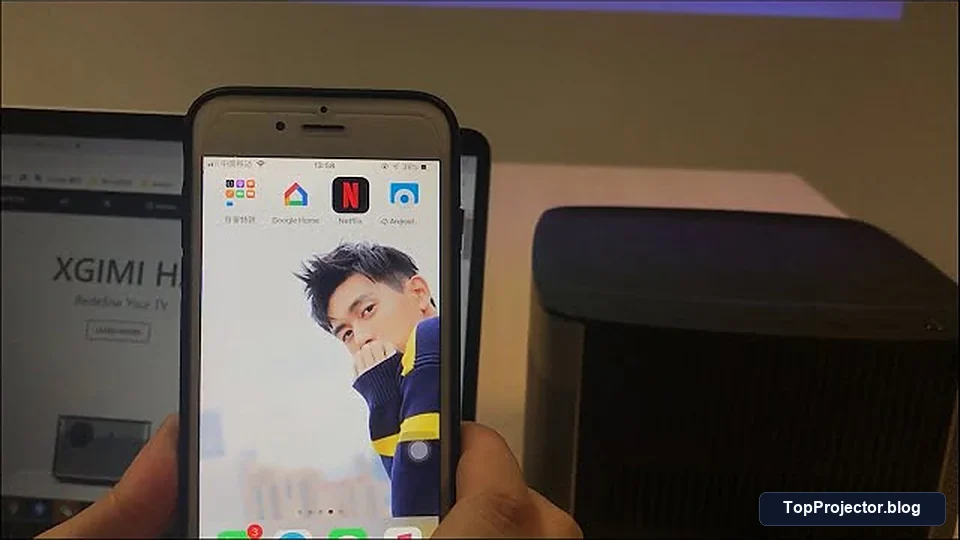
If you prefer avoiding cables, use built-in wireless casting features. Ensure both your laptop and XGIMI projector are connected to the same Wi-Fi network.
On Windows, press the network action center and click 'Cast'. Select your projector from the list of available wireless displays in range.
Keep in mind that wireless casting introduces slight input latency. Reserve this method for media playback and presentations rather than fast-paced gaming.
- Connect both devices to a stable 5GHz Wi-Fi network.
- Use native casting shortcuts to initiate screen mirroring.
- Expect minor latency during wireless video transmission.
- Position devices close to your router for optimal bandwidth.
Using Third-Party Casting Applications
For advanced casting needs, install dedicated sharing apps like AirScreen on your XGIMI projector. This ensures smooth compatibility with macOS and iOS devices.
Always keep your projector firmware updated to maintain stable wireless protocol compatibility across various operating system updates.
- Download reliable receiver apps from authorized app stores.
- Update projector system software to patch connection bugs.
Minimizing Network Latency Over Wi-Fi
Connect both your laptop and projector to a dedicated 5GHz Wi-Fi band to reduce packet loss and minimize input lag below normal wireless streaming thresholds.
Troubleshooting Latency, Resolution, and Audio Output
Experiencing audio sync issues? Navigate to your sound settings and ensure your XGIMI projector is selected as the default playback device.
Enable game mode in your projector settings to reduce input lag significantly. This minimizes processing delays for responsive mouse and keyboard use.
If images appear warped, use the automatic keystone correction tool. This aligns your picture geometry for a perfect rectangular image on screen.
- Select the correct audio output device in your OS settings.
- Enable game mode to minimize input lag during interactive tasks.
- Use autofocus and keystone correction for clear geometry.
- Check HDMI color space settings for accurate color reproduction.
Fixing Audio Output Discrepancies
Sometimes audio routes to the laptop speakers instead of the projector. Manually override the default sound output in your operating system taskbar.
Ensure your HDMI audio drivers are fully updated to prevent intermittent dropouts during multi-channel audio playback.
- Force audio routing to HDMI via system sound control panels.
- Reinstall audio drivers if sound output fails completely.
Fixing Overscan and Keystone Distortion
Disable digital zoom features and reset keystone correction to native zero values, ensuring a 1:1 pixel mapping accuracy from your laptop GPU without unwanted scaling artifacts.
Frequently Asked Questions
Why is my XGIMI projector showing no signal from my laptop?
Ensure your physical cable is firmly seated and the correct input source is selected. Restarting both devices often resolves temporary HDCP handshake errors instantly.
Can I connect my laptop to an XGIMI projector using USB-C?
Yes, provided your laptop USB-C port supports DisplayPort Alternate Mode. Standard data-only ports will fail to transmit any video signal to the projector.
How do I fix input lag when gaming on my XGIMI projector?
Enable Game Mode within your projector picture settings to bypass unnecessary video processing. This drastically reduces input lag for responsive gameplay.
What is the best display resolution to set on my laptop?
Always match the native resolution of your specific XGIMI projector model. This prevents scaling artifacts and keeps desktop text tack-sharp.
How can I cast my laptop screen wirelessly to my XGIMI projector?
Connect both devices to the same 5GHz Wi-Fi network. Use the native casting shortcut on your operating system to mirror your display.