How to Connect Wireless Speaker to Projector?
Master wireless audio routing for your projector setup. Eliminate lip sync delays and enjoy pristine cinematic sound.
Pairing wireless speakers requires checking Bluetooth support or adding a low-latency transmitter. Always prioritize aptX codecs to eliminate frustrating lip-sync delays during movie playback.
Ready to compare verified models? Start with our Best Speakers For Projector: Top Picks for Clear Movie Audio.
Practical Quick-Reference Table
| Scenario / Metric | Recommended Target | Why It Matters |
|---|---|---|
| Native Bluetooth | Bluetooth 5.0 or higher | Ensures stable wireless transmission range. |
| Audio Latency | Under 40 milliseconds | Prevents noticeable lip-sync mismatch. |
| Transmitter Type | aptX Low Latency Dongle | Eliminates audio lag during video playback. |
| Speaker Distance | Within 10 feet | Minimizes RF interference and signal dropouts. |
| Source Volume | 80% to 90% output | Prevents digital distortion and clipping artifacts. |
| Firmware Version | Latest manufacturer release | Patches protocol bugs and improves stability. |
Evaluating Audio Output Ports and Transmitter Compatibility
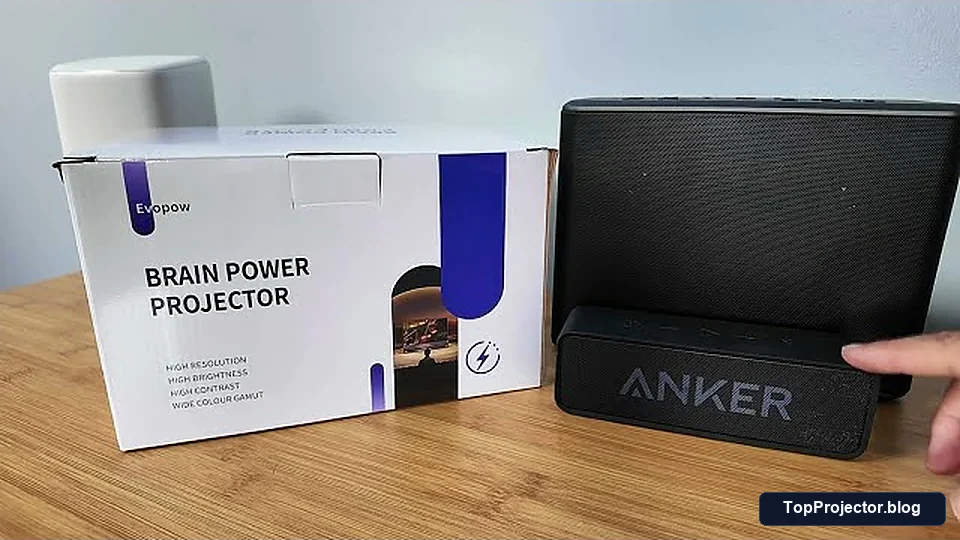
Modern home theater projectors feature varying audio connectivity options. You must inspect your chassis for 3.5mm analog jacks or optical outputs before attempting wireless setups.
Many portable projectors lack native Bluetooth transceivers. Identifying your hardware limitations dictates whether you need an external transmitter or a direct software pairing method.
Pairing wireless audio with a massive image works best when referencing our best 135 inch projector screen guide to match your native optical throwing capabilities and ambient light rejection requirements.
Legacy lamp-based projectors often require external adapters to bridge the audio gap. Assessing your ports early ensures a smooth integration with modern wireless speakers.
Inspect your projector's rear I/O panel for a 3.5mm AUX jack or an Optical Toslink port before purchasing any external wireless audio hardware to guarantee seamless signal transmission.
Verify whether your specific projector firmware supports HDMI ARC or eARC functionality, as these channels bypass standard stereo limitations for uncompressed multi-channel audio delivery.
- Check rear panel I/O audio ports thoroughly
- Verify internal firmware Bluetooth support
- Inspect external source audio settings
- Note maximum supported audio codecs
- Audit existing analog and digital output terminals carefully.
- Consult manufacturer manuals for hidden audio routing toggles.
Assessing Projector Hardware Specifications
Budget LED projectors often rely exclusively on basic HDMI audio passthrough. High-end laser models integrate robust Bluetooth 5.2 modules for seamless wireless pairing.
Reviewing your user manual prevents frustrating connection mismatches. Always verify whether your specific model transmits audio out or only receives audio inputs.
Inspect physical port labels to confirm output capabilities before connecting external gear.
- Consult manufacturer technical specs
- Distinguish audio-in from audio-out ports
- Test legacy analog connections
Identifying Analog Versus Digital Audio Standards
Analog 3.5mm connections suffer from ground-loop hums near high-wattage lamp ballasts, making digital optical outputs the superior choice for preserving pristine dynamic range across long cable runs.
Always match your transmitter input impedance with the source output voltage to prevent signal clipping and catastrophic audio distortion during high-volume cinematic sequences.
- Check port labeling for dedicated ARC compatibility.
- Confirm maximum digital sampling rate support.
Establishing Direct Bluetooth Audio Links
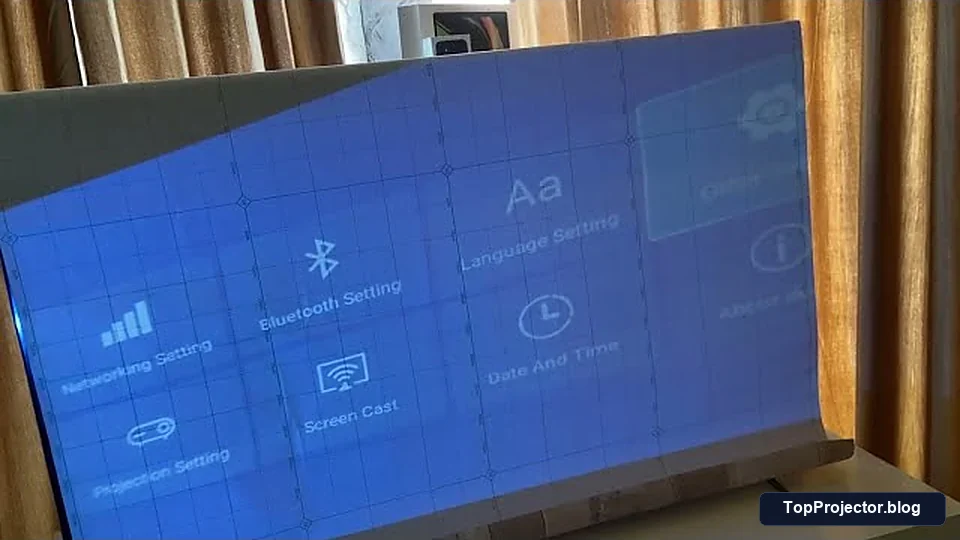
Connecting a wireless speaker directly to your projector eliminates cable clutter. Navigate to the main system settings and select the Bluetooth pairing menu.
Put your Bluetooth speaker into pairing mode simultaneously. Once the projector scans the room, select your speaker model from the detected device list.
Successful pairing immediately routes system audio away from internal speakers. Test the connection with dynamic movie scenes to verify signal stability.
Keep competing smartphones turned off during pairing to avoid signal hijacking.
Navigate directly to your projector operating system settings menu using the remote control and locate the Bluetooth pairing wizard to initiate device discovery mode instantly.
Ensure your wireless speaker remains in pairing mode with the LED indicator flashing rapidly, indicating the hardware is actively broadcasting its unique MAC address.
- Power on projector settings menu
- Enable speaker pairing mode
- Select target device name
- Confirm successful audio handshake
- Toggle Bluetooth power cycles to clear cached pairings.
- Keep speakers within three meters during initial handshakes.
Pairing Native Projector Firmware
Smart Android TV projectors offer the most straightforward wireless speaker integration. The underlying operating system manages Bluetooth connections reliably without extra hardware.
Keep your speaker within ten feet of the projector during initial pairing. This minimizes RF interference and ensures a stable digital handshake.
Reboot both devices if the initial pairing sequence fails to detect the speaker.
- Update projector smart firmware
- Keep devices in close range
- Ignore competing smartphone signals
Overcoming Android TV Bluetooth Restrictions
Many projector firmware builds restrict Bluetooth profiles to basic media output, requiring developer options access to force AAC or aptX codecs for reduced audio latency.
Reboot both the projector and the target speaker simultaneously if the device list fails to populate available hardware after multiple manual refresh attempts.
- Access hidden developer menus via remote shortcuts.
- Clear Bluetooth cache data through system settings.
Video Walkthrough: How to Connect Any Bluetooth Speaker to Projector
Utilizing External Wireless Audio Transmitters
If your projector lacks built-in Bluetooth, an external transmitter solves the problem. Plug a USB or 3.5mm transmitter into your projector's audio output port.
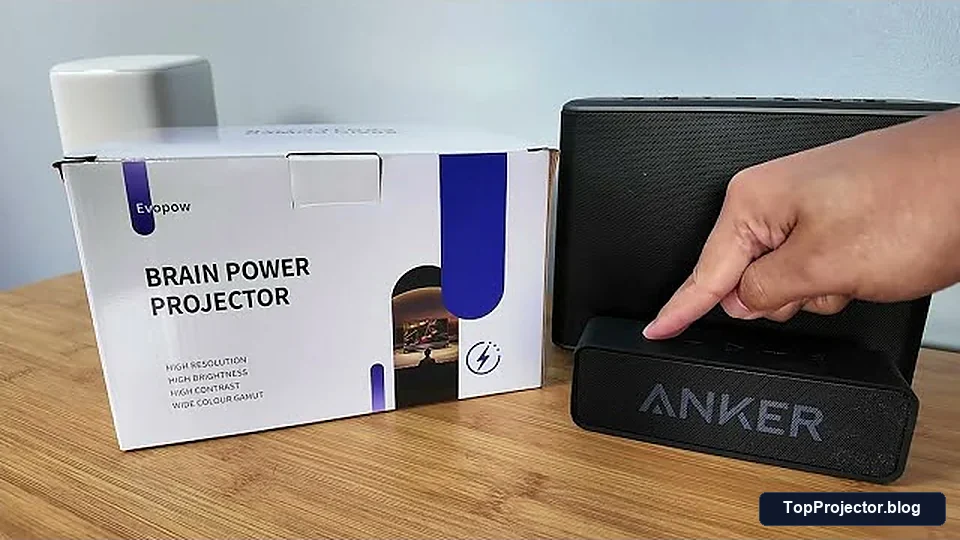
These compact dongles broadcast projector sound directly to nearby wireless speakers. They bridge the technological gap on older lamp-based home theater projectors.
Modern laser models excel here, as explored in the Hisense PX3-Pro review, delivering robust 3,000 ANSI lumens of peak brightness alongside clean wireless audio setup configurations.
Selecting a high-quality transmitter guarantees reliable wireless performance across your entire room.
For portable hardware setups, review our XGIMI bluetooth connection guide to eliminate severe input lag and achieve synchronized multi-room audio performance effortlessly.
Power your external transmitter using a separate wall adapter rather than the projector's USB service port to prevent electrical noise interference and voltage drops.
- Purchase low-latency Bluetooth dongles
- Connect to 3.5mm audio out
- Pair transmitter to speaker
- Secure stable power supply
- Select transmitters supporting aptX Low Latency codecs.
- Verify analog-to-digital conversion quality ratings.
Configuring Low-Latency Adapters
Standard Bluetooth adapters introduce noticeable audio delay during movie playback. Selecting an adapter supporting aptX Low Latency prevents annoying lip-sync errors.
Follow the pairing instructions specific to your chosen adapter brand. Most units feature a simple button press to establish a secure wireless link.
Test the adapter with fast-paced dialogue sequences immediately after pairing.
- Verify aptX codec support
- Press adapter pairing button
- Test audio sync performance
Optimizing Radio Frequency Transmitter Placement
Position your external wireless transmitter away from heavy-duty HDMI cables and Wi-Fi routers to minimize 2.4GHz spectrum congestion that degrades overall sound fidelity.
Mounting the transmitter with direct line-of-sight to the speaker drastically improves signal strength and eliminates intermittent audio dropouts during movie playback.
- Keep transmitters clear of active power strips.
- Elevate units above typical living-room furniture lines.
Routing Audio Through External Streaming Sources
An alternative method involves connecting your streaming stick directly to a soundbar. Devices like Apple TV or Roku stream video to the projector while outputting audio wirelessly.
This clever workaround bypasses projector audio limitations entirely. Your streaming device acts as the central hub, routing video forward and sound to your wireless speaker.
Using streaming hubs eliminates the need for separate projector audio transmitters entirely. Ensure your streaming box supports multi-room wireless audio grouping.
This configuration maintains pristine digital audio quality without processing latency.
Bypass projector audio limitations entirely by plugging your media streamer into an HDMI audio extractor that splits video to the display and audio to your speakers.
Configure your streaming device output settings to Dolby Digital bitstream passthrough so your wireless receiver processes the multi-channel soundstage correctly.
- Plug streamer into soundbar
- Pass video to projector
- Select source inputs
- Calibrate ecosystem sync
- Ensure extractors support modern HDMI bandwidth standards.
- Check HDCP compliance for protected streaming content.
Connecting Media Players Directly to Soundbars
Modern streaming boxes support advanced multi-channel wireless audio protocols. You achieve superior sound quality and eliminate projector processing lag by routing audio first.
Ensure your streaming device supports high-bandwidth wireless transmission protocols. This guarantees your home theater delivers immersive audio matching large-scale projection visuals.
Verify HDMI-CEC settings to control volume uniformly.
- Use HDMI pass-through ports
- Configure media player audio
- Group smart wireless speakers
Configuring External Streaming Ecosystems
Apple TV and Roku boxes offer advanced audio routing menus that let you pair wireless speakers directly to the streamer, completely circumventing projector latency bottlenecks.
Ensure your streaming device software is fully updated to patch known Bluetooth pairing bugs and maintain stable connections with modern soundbars.
- Review streamer audio output format submenus.
- Test different surround sound decoding profiles.
Video Walkthrough: How to get better sound from your projector
Calibrating Lip-Sync Delay and Audio Latency
Wireless audio transmission inherently introduces minor processing delays. You must adjust the audio delay settings in your projector menu to match visual frames.
Lips moving out of sync with dialogue ruins immersive movie nights. Fine-tuning millisecond offsets restores perfect harmony between your projected images and speaker audio.
Proper seating geometry ensures optimal dialog clarity, which you can verify using our screen size and viewing distance calculator to guarantee an accurate 16:9 aspect ratio presentation without eye strain.
Save your custom calibration presets once perfect synchronization is achieved.
Access your projector or receiver audio menu to adjust the lip-sync delay setting, adding milliseconds of video buffering to align picture with sound perfectly.
Measure processing lag using a specialized test pattern video clip that flashes a visual cue alongside an exact audio beep for precise millisecond calibration.
- Access audio sync menu
- Adjust millisecond offsets
- Test with spoken dialogue
- Save custom calibration presets
- Target zero perceivable delay for fast-action content.
- Document custom offset values for different sources.
Adjusting Projector and Receiver Sync Settings
Most modern home theater projectors include dedicated lip-sync calibration tools. Incrementally increase the delay until dialogue perfectly aligns with onscreen actor mouth movements.
If your projector lacks this feature, your media streaming device likely includes audio offset controls. Use whichever system offers precise millisecond adjustments.
Document your final offset numbers for future reference.
- Test with test patterns
- Increment by 10ms steps
- Verify across multiple sources
Fine-Tuning Audio Buffer Timing Parameters
Excessive video processing modes like frame interpolation or advanced noise reduction introduce severe lag, requiring higher audio delay offsets to maintain synchronization.
Test your calibrated settings across multiple streaming applications, as different video codecs often exhibit unique buffer behaviors that alter overall timing.
- Disable unnecessary video processing features first.
- Increment delay sliders in ten-millisecond steps.
Troubleshooting Common Wireless Audio Interference
Wireless signals suffer from interference caused by competing home networks. Keep your Bluetooth speaker away from active routers and heavy electrical appliances to maintain clarity.
Low volume issues often stem from mismatched output levels on connected devices. Maximize the source volume before adjusting your wireless speaker's physical master knob.
Clearing wireless congestion restores lost bandwidth and prevents frustrating audio stutters. Regular firmware updates also resolve underlying Bluetooth pairing glitches.
Positioning your speaker properly guarantees consistent audio performance during movie nights.
Isolate audio popping and crackling noises by changing your wireless router's Wi-Fi channel allocation away from the congested frequency bands used by your speakers.
Shield unshielded analog patch cables with ferrite beads to suppress electromagnetic interference generated by nearby lamp ballasts and power supplies.
- Move away from routers
- Check master volume levels
- Re-pair Bluetooth devices
- Clear wireless congestion
- Audit surrounding wireless devices for interference.
- Upgrade to heavily shielded coaxial interconnects.
Resolving Dropouts and Audio Lag
Persistent audio dropouts indicate excessive distance between transmitter and speaker. Reduce physical barriers and maintain a clear line of sight for optimal signal strength.
Updating your projector and speaker firmware resolves underlying Bluetooth protocol bugs. Manufacturers frequently patch stability issues through routine software update releases.
Replace failing cables or adapters showing intermittent connection faults.
- Maintain clear line of sight
- Update device firmware
- Minimize physical barriers
Resolving Stubborn Ground Loop Interferences
Insert an inexpensive ground loop isolator into your audio signal path to eliminate persistent low-frequency hums caused by unequal electrical outlet grounding.
Plug both your projector and your wireless audio system into the same dedicated wall circuit to balance electrical potentials across your home theater.
- Inspect wall outlet wiring integrity carefully.
- Use isolation transformers for stubborn analog lines.
Frequently Asked Questions
Can I connect any wireless speaker to my projector?
You can connect most Bluetooth speakers if your projector has native Bluetooth output. If it lacks Bluetooth, you must use an external audio transmitter plugged into the 3.5mm jack.
Why is there a delay between video and sound on my wireless speaker?
Wireless audio transmission naturally introduces processing lag. Adjust the audio sync delay in your projector or streaming device settings to eliminate lip-sync errors.
What should I do if my projector does not have Bluetooth built-in?
Purchase an inexpensive low-latency Bluetooth transmitter dongle. Plug the adapter directly into the projector audio output port and pair it with your speaker.
How can I prevent audio dropouts during movie playback?
Keep your wireless speaker within ten feet of the projector. Avoid placing heavy barriers or active Wi-Fi routers directly between the connected devices.
Is it better to connect my speaker to the projector or the streaming device?
Connecting your speaker directly to the streaming device often reduces latency. This setup bypasses projector audio processing limitations and delivers superior wireless stability.