How to Connect Lg Projector to Laptop Wirelessly?
Master wireless screen mirroring between your computer and LG projector. Eliminate latency and achieve optimal resolution performance.
Ensure both devices share the exact same 5GHz Wi-Fi band to minimize latency during high-definition wireless projection sessions.
Ready to compare verified models? Start with our Best Laptop Projector For Movies: Top Cinematic Picks.
Practical Quick-Reference Table
| Protocol / Method | Supported OS | Average Latency & Notes |
|---|---|---|
| Miracast | Windows 10 / 11 | < 100ms latency; ideal for native desktop extension. |
| AirPlay 2 | macOS / iOS | Smooth streaming; requires compatible webOS version. |
| Wi-Fi Direct | Universal | Peer-to-peer link bypassing local network routers. |
| Web Browser Casting | Cross-Platform | Tab-specific sharing with minor frame drops. |
| HDMI Dongle | Universal | Zero network lag hardware alternative for reliability. |
| DLNA Media Share | Cross-Platform | File playback only, not real-time screen extension. |
Evaluating Hardware and Network Prerequisites
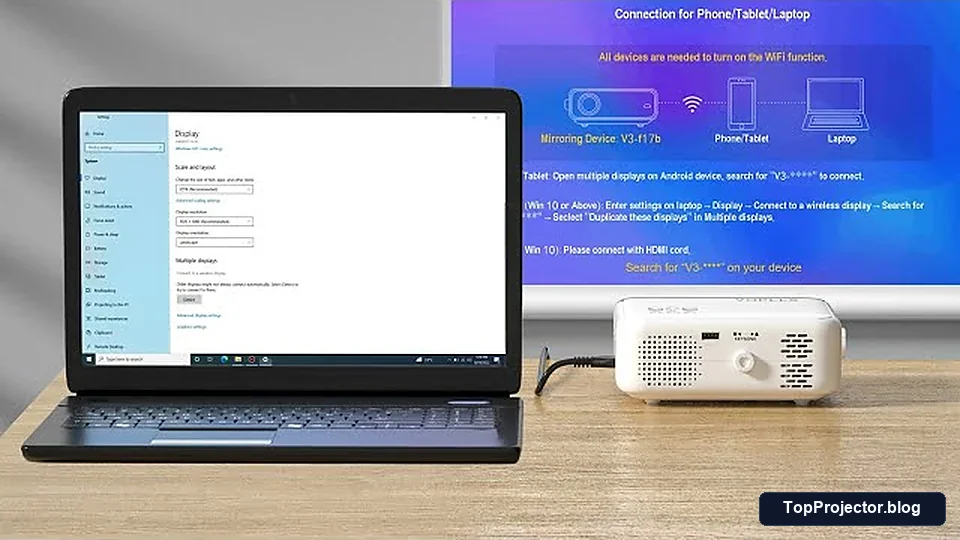
Successful wireless projection depends heavily on your local network architecture. Verify that your wireless router supports dual-band frequencies to prevent signal congestion during high-bandwidth media playback.
Both your laptop and your LG projector must connect to the exact same local network SSID. Mixing guest networks or isolated VLANs will block discovery protocols instantly.
Establishing a reliable wireless projection link requires verifying that both your laptop and LG projector connect to the exact same 5GHz Wi-Fi band rather than congested 2.4GHz channels to prevent dropped frames.
Modern LG CineBeam models integrate robust wireless network cards supporting Wi-Fi 5 or Wi-Fi 6, ensuring adequate bandwidth for transmitting uncompressed 1080p video streams with minimal visual artifacts and compression noise.
- Check that your LG projector runs a compatible webOS firmware version.
- Ensure your laptop has up-to-date wireless network adapter drivers installed.
- Position both devices within fifteen feet of your wireless router for optimal signal strength.
- Disable VPN software temporarily during initial connection pairing sequences.
- Verify router signal strength before initiating wireless pairing sequences
- Keep local network traffic minimized during high-bitrate video streaming tasks
Verifying Projector Wireless Capabilities
Check your specific projector specification sheet for Miracast or Wi-Fi Direct support before pairing. When setting up backyard movie nights, pair your wireless gear with our best projector screen for outdoor use recommendations.
Entry-level smart projectors running older operating systems may require external USB dongles to process wireless streams smoothly without dropping packets.
- Access projector settings via the physical remote control.
- Navigate to the network submenu to confirm active Wi-Fi status.
- Look explicitly for screen share or device mirroring applications.
Checking Laptop Operating System Support
Windows 10 and 11 feature native Miracast integration via the action center. macOS machines rely primarily on AirPlay protocols built directly into modern Apple silicon chips.
Verify your operating system is fully patched to prevent handshake failures during secure HDCP protected video streaming sessions.
- Press Windows key plus K to open the wireless display flyout.
- Check the macOS control center for screen mirroring options.
Network Infrastructure
Network congestion is the primary enemy of seamless wireless projection. Ensure your wireless router sits within line of sight of the projection environment to maintain optimal signal-to-noise ratios.
- Verify router firmware supports IEEE 802.11ac or ax standards
- Disable AP isolation mode to allow device discovery
Hardware Compatibility
Check your laptop graphics hardware to confirm native support for hardware-accelerated encoding. This prevents CPU throttling and ensures smooth desktop extension during high-motion video playback sessions.
- Update integrated GPU drivers for Intel or AMD processors
- Confirm Bluetooth is enabled for initial device handshakes
Connecting Windows Laptops via Miracast
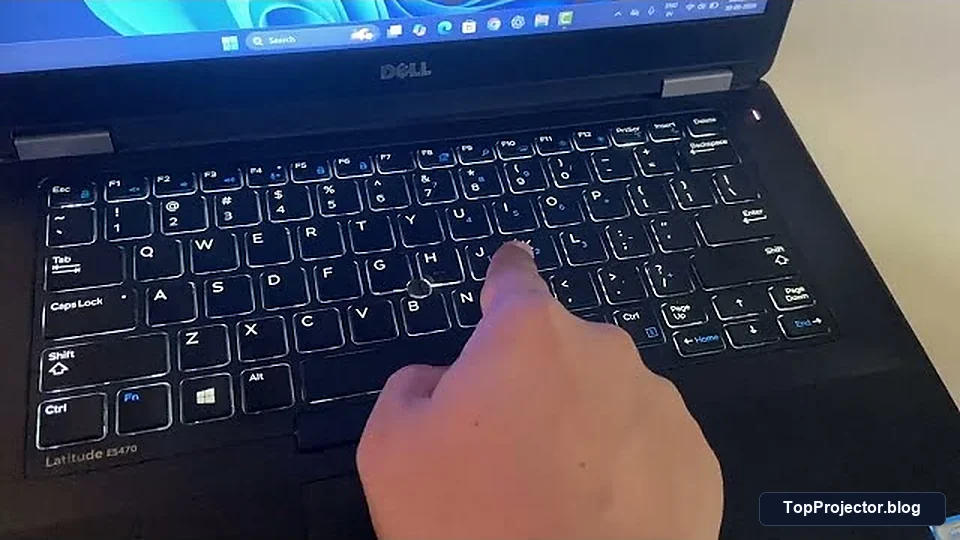
Windows operating systems make wireless projection straightforward through native Miracast technology. This protocol mirrors your exact desktop pixels directly to the projector over a peer-to-peer Wi-Fi link.
Begin by launching the Screen Share application on your LG projector interface. Before casting your desktop, verify your layout using our screen size and viewing distance calculator for optimal immersion.
Windows operating systems utilize Miracast technology for direct, peer-to-peer wireless display connections. Press the Windows key plus K shortcut to immediately open the Cast menu and scan for active LG projectors.
If your projector fails to appear in the casting menu, navigate to Windows display settings and select detect another display to manually force a network adapter query across local interfaces.
- Power on your LG projector and select the Screen Share input source.
- Open your Windows laptop and press the shortcut keys Windows plus K.
- Wait for the projector model name to appear in the available display list.
- Click the device name to initiate the wireless connection handshake.
- Ensure Wi-Fi Direct capabilities remain active in laptop adapter settings
- Restart the Windows projection service if device discovery stalls indefinitely
Adjusting Display Modes and Resolution
Once connected, access your Windows display settings to configure your output. Choose between duplicating your laptop screen or extending your desktop for dual-screen productivity.
Match your projector native resolution, typically 1080p or 4K, to prevent automatic scaling artifacts and blurry text rendering across the projected image.
- Right-click the Windows desktop and select Display Settings.
- Adjust the resolution slider to match projector specifications.
- Select Extend desktop for maximum workspace utility.
Optimizing Windows Display Settings
Once connected, adjust your display mode from duplicate to extend desktop for presentation workflows. This allows you to run speaker notes on your laptop while projecting pure video content.
- Set refresh rate to 60Hz matching projector native specs
- Adjust scaling to 125 percent for legible text rendering
Video Walkthrough: Wirelessly Connect \u0026 Mirror Laptop on Projector Without Using on Same WiFi Network
Streaming from macOS Devices Using AirPlay
Apple computers handle wireless projection through AirPlay 2 technology embedded within macOS. Ensure your LG projector supports Apple AirPlay by checking the webOS version in the general settings menu.
Both the MacBook and the projector must connect to the same 5 GHz Wi-Fi network. If wireless drops occur, consult our MacBook HDMI connection guide for reliable wired alternatives.
Apple macOS devices rely on AirPlay 2 protocols to stream content directly to compatible LG webOS projectors. Open the macOS Control Center from the menu bar and click screen mirroring.
Both your MacBook and the LG projector must be signed into the same Apple account or reside on an unblocked local subnet to bypass strict firewall security restrictions during pairing.
- Open the Control Center located in the top-right corner of your Mac menu bar.
- Click the Screen Mirroring icon displaying two overlapping rectangles.
- Select your LG projector from the dropdown list of available AirPlay receivers.
- Enter the temporary four-digit passcode displayed on your projection screen if prompted.
- Check network settings to ensure device isolation is disabled
- Verify Apple device operating system versions support modern Airplay codecs
Optimizing Mac Audio Output Routing
AirPlay streams both video and multi-channel audio simultaneously to your projector. Verify that your Mac sound output automatically switches to the projector internal speakers or connected AV receiver.
If audio fails to route properly, open Mac Sound Preferences and manually select your LG projector as the primary output device.
- Open System Settings on your macOS laptop.
- Navigate to the Sound output tab.
- Confirm the LG projector is actively selected.
Advanced AirPlay Configuration
Select your specific LG projector model from the AirPlay drop-down list and enter the four-digit PIN code displayed on your projection screen to finalize the secure pairing handshake.
- Toggle display mode between mirror and separate display
- Check AirPlay receiver settings within webOS connection menus
Utilizing LG webOS Built-In Casting Apps
Modern LG smart projectors run webOS, offering dedicated applications for wireless content delivery. These apps simplify casting from mobile devices and laptops without complex operating system handshakes.
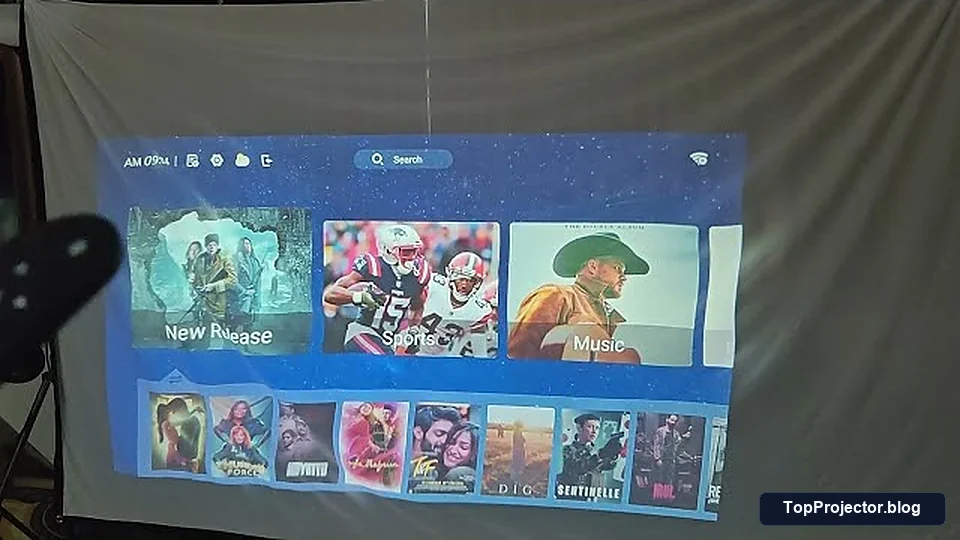
Launch the pre-installed Home Dashboard on your projector to manage active wireless connections. For alternative smart device comparisons, explore our XGIMI Horizon Pro 4K review for detailed brightness testing.
LG webOS projectors feature dedicated smart casting applications that bridge mobile devices and laptops without native OS mirroring protocols. Launch the pre-installed Screen Share app from the webOS home launcher.
These proprietary webOS utility applications support DLNA and proprietary casting bridges, offering alternative connectivity paths when standard network protocols encounter stubborn handshake failures or router blocks.
- Press the home button on your LG magic remote control.
- Select the Screen Share or AirPlay app tile from the menu.
- Follow the on-screen pairing instructions specific to your laptop brand.
- Keep the application open in the foreground to prevent connection timeouts.
- Ensure webOS application permissions allow incoming network streams
- Update smart TV software to resolve lingering connection bugs
Managing Connected Device Permissions
Security prompts will appear on your projector screen when a new laptop requests access. Always review and accept the connection request prompt to establish a trusted session.
You can manage trusted devices directly inside the webOS network security settings to streamline future connection sessions without repeated manual approvals.
- Accept incoming connection prompts using the projector remote.
- Save device profiles to trusted lists for faster pairing.
- Revoke old laptop permissions if security requires.
Managing webOS App Permissions
Ensure you grant necessary network permissions when prompted by the webOS interface to allow incoming streams from unfamiliar laptop IP addresses stored on your local subnet range.
- Keep webOS firmware updated for latest casting patches
- Clear application cache if connection streaming buffers frequently
Troubleshooting Input Lag and Connection Drops
Wireless projection inherently introduces minor input latency compared to physical HDMI cables. Expect 50 to 150 milliseconds of lag, making fast-paced competitive gaming unideal over Wi-Fi.
If your connection drops frequently, wireless interference from neighboring routers on overlapping channels is likely disrupting the stable data stream required for projection.
Wireless projection inherently introduces latency compared to hardwired HDMI connections. Expect an average input lag of 45ms or higher, making fast-paced competitive gaming less than optimal over wireless networks.
Combat random connection drops by switching your router to a fixed, uncongested DFS wireless channel to avoid interference from neighboring household networks operating on overlapping frequencies.
- Move your laptop closer to the wireless router or projector.
- Switch your Wi-Fi network from the crowded 2.4GHz band to 5GHz.
- Disconnect unused wireless devices consuming local network bandwidth.
- Restart both your laptop and the LG projector to clear caches.
- Avoid placing thick physical barriers between the router and projector
- Minimize background downloads on your laptop during active streaming
Resolving Audio and Video Desynchronization
Audio delay often occurs when wireless network packets struggle to sync with high-bitrate video streams. Pause your media playback for five seconds to allow buffers to realign automatically.
Lowering your laptop display resolution from 4K to 1080p can significantly reduce processing overhead and eliminate persistent audio sync drifting issues.
- Pause and restart media playback to reset buffer queues.
- Reduce desktop resolution to lower network traffic.
- Update wireless network adapter drivers on your laptop.
Advanced Latency Mitigation
Enable Game Optimizer mode on your LG projector if available to disable heavy video processing pipelines and significantly reduce overall input response times during presentations.
- Move laptop closer to the wireless projection source
- Disable background cloud synchronization services on your laptop
Frequently Asked Questions
Why won't my Windows laptop detect my LG projector wirelessly?
Ensure both devices are connected to the exact same local Wi-Fi network. Verify that your projector has the Screen Share application actively running in the foreground.
Can I connect my laptop to an LG projector without a Wi-Fi router?
Yes, you can utilize Wi-Fi Direct or Miracast peer-to-peer protocols. This establishes a direct wireless link between the laptop and projector without internet.
Is wireless projection suitable for playing fast-paced video games?
No, wireless streaming introduces noticeable input lag exceeding 50ms. Physical HDMI cables remain mandatory for responsive, low-latency gaming performance.
Why does my wireless projection lag and drop connection frequently?
Signal interference on the crowded 2.4GHz wireless band usually causes connection drops. Switch both devices to a less congested 5GHz network channel.
Does macOS support wireless projection to all LG projector models?
Only LG projectors featuring built-in Apple AirPlay 2 support natively accept MacBook mirroring. Older models require third-party casting applications or hardware adapters.