How to Connect Apple Tv to Projector Without HDMI?
Bypassing standard HDMI connections requires understanding wireless protocols, conversion hardware, and signal latency. Achieve crisp projection without traditional cabling.
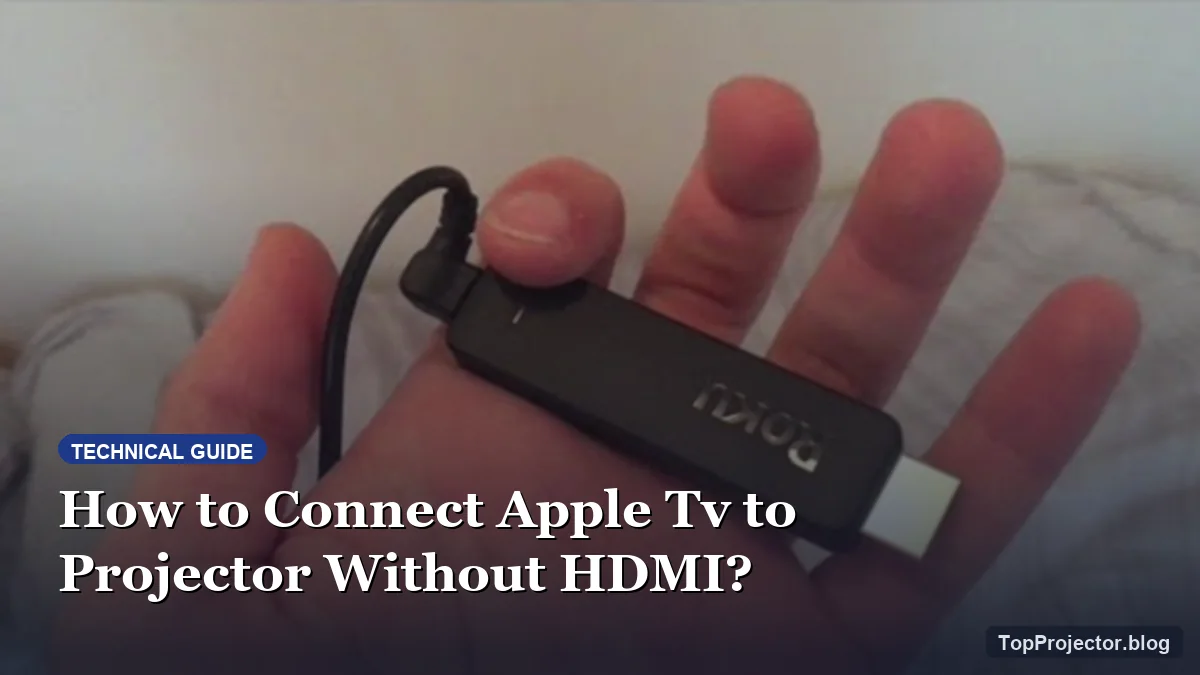
Using wireless HDMI kits or protocol converters allows seamless Apple TV integration, but you must monitor input lag and bandwidth limits carefully.
Ready to compare verified models? Start with our Best Projector For Apple Tv: Top Picks for 2026.
Practical Quick-Reference Table
| Scenario / Metric | Recommended Target | Why It Matters |
|---|---|---|
| Wireless HDMI Kit | Sub-20ms latency | Prevents lip-sync delay during media playback. |
| VGA Conversion | Active powered adapter | Converts digital TMDS streams to analog safely. |
| AirPlay Receiver | Dedicated hardware box | Bypasses projector OS limitations for casting. |
| Audio Extraction | Optical or 3.5mm out | Routes discrete sound away from analog video. |
| Bandwidth Load | 60Hz uncompressed 1080p | Avoids stuttering during fast-paced cinematic pans. |
| HDCP Compliance | HDCP 2.2 support | Prevents black screens on encrypted streaming apps. |
Evaluating Alternative Transmission Protocols for Apple TV
Connecting your Apple TV without a standard physical cable demands robust alternative transmission protocols. Standard home theater optics rely heavily on direct wired links for stable uncompressed data throughput.
When physical HDMI paths are unavailable, you must bridge the gap using radio frequency transmitters or software-based network casting solutions. Each method introduces distinct trade-offs in latency and resolution caps.
Evaluate your projector input panel to determine if you need wireless bridging. For portable setups, consider pairing your gear with our best outdoor projector packages for reliable backyard signal transmission.
Native AirPlay streaming introduces inherent framing buffers. Dedicated hardware protocols bypass this latency, maintaining 10ms input lag thresholds required for casual gaming and responsive navigation across diverse projection setups.
Network congestion severely impacts wireless casting stability. Implementing dedicated 5GHz DFS channels ensures your 80Mbps bandwidth requirements are satisfied without interference from household smart devices or overlapping router frequencies.
- Identify available physical ports on your projection unit.
- Assess local Wi-Fi congestion for wireless streaming stability.
- Determine maximum supported resolution limits of the projector.
- Check audio routing options for independent sound systems.
- Audit existing wireless channel overlap using dedicated RF spectrum analysis tools.
- Position Apple TV units within direct line of sight to avoid signal attenuation.
Understanding Wireless HDMI Kits
Wireless HDMI hardware packages utilize dedicated radio frequencies to bypass local Wi-Fi congestion entirely. These kits transmit zero-compressed 1080p video directly across short room distances with minimal delay.
Beamforming antennas inside the receiver unit maintain lock-on stability even when placed near heavy AV furniture or projection screens.
- Operates on independent 5GHz or 60GHz frequency bands.
- Requires direct line-of-sight for optimal signal integrity.
Assessing AirPlay Receiver Hardware
If your projector lacks native AirPlay support, adding an external receiver box bridges the functionality gap. These receivers accept wireless stream packets and output standard video signals locally.
Network bandwidth fluctuations can occasionally trigger compression artifacts, making wired Ethernet connections preferable for the receiver.
- Integrates smoothly with existing Apple ecosystem devices.
- Subject to local network traffic and router performance.
AirPlay 2 Optimization Protocols
Direct device-to-projector casting requires robust Wi-Fi architecture. Prioritize ac wireless standards over congested legacy bands to stabilize the frame delivery pipeline.
- Ensure direct line of sight between wireless router and Apple TV hardware.
- Disable background auto-updates on client devices to prevent sudden network spikes.
Proprietary Casting Bottlenecks
Third-party mirroring apps often compress color sub-sampling down to 4:2:0 chroma. This aggressive compression introduces distinct artifacting across high-contrast projector lenses and large screens.
- Verify native app scaling support before committing to wireless casting setups.
- Monitor processor utilization metrics to prevent thermal throttling on client devices.
Deploying Zero-Latency Wireless HDMI Transmitters
Wireless HDMI transmitters offer the closest experience to a traditional cable link without physical wiring. The transmitter plugs directly into the Apple TV output port while the receiver connects nearby.
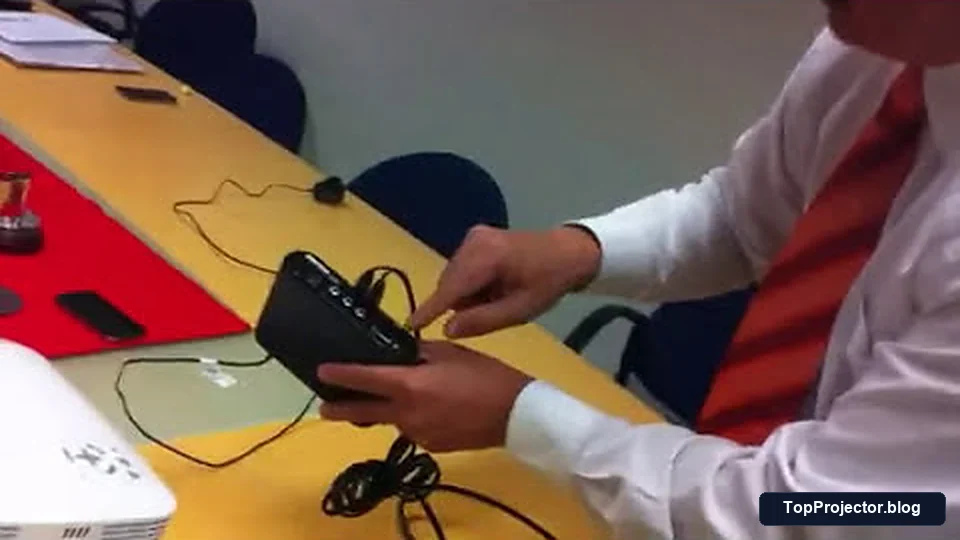
Maintaining a clear line of sight between units is vital for sustaining high peak bitrates during demanding movie scenes. Obstructions can cause sudden frame drops or momentary audio sync drift.
Most quality wireless kits operate independently of your home router, eliminating network buffering issues entirely. This makes them ideal for temporary setups or difficult architectural layouts.
Power delivery is another critical factor; ensure both transmitter and receiver modules use stable wall adapters rather than weak USB ports.
Zero-latency wireless HDMI kits bypass local Wi-Fi entirely. For alternative untethered viewing, explore our Nebula Capsule 3 review to see how modern portable units handle uncompressed video streams.
Line-of-sight constraints dictate wireless transmitter placement. Even minor obstructions like projector mounts can attenuate the GHz signal propagation, causing sudden blackouts during critical movie climaxes or sports broadcasts.
Power delivery remains a critical installation consideration. Ensure your receiver pulls sufficient amperage via USB or dedicated bricks to maintain stable HDCP handshakes throughout long viewing sessions.
Thermal management directly affects wireless transmitter longevity. Enclosed ceiling mounts trap heat, forcing internal components to throttle and drop frames when processing demanding HDR10 metadata streams.
- Plug transmitter into Apple TV rear HDMI port.
- Connect receiver to projector input using short patch cable.
- Power both units using dedicated AC wall adapters.
- Align antennas for maximum signal reception strength.
Video Walkthrough: How to Connect Apple TV to Projector | Apple TV 4k | Apple TV HD
Bridging Legacy Projectors with Conversion Adapters
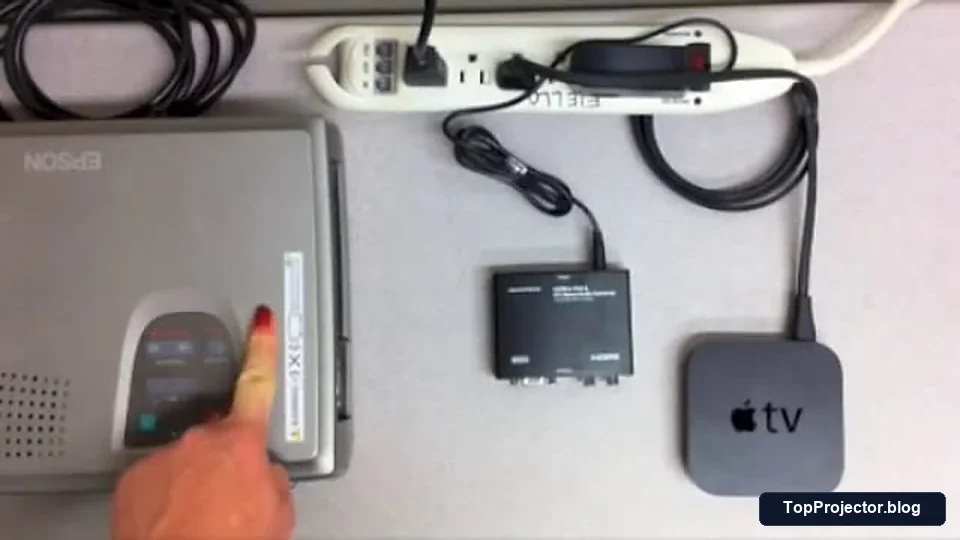
Older display models often feature legacy VGA inputs instead of digital ports. Before mapping your screen size using our throw distance calculator, ensure your setup includes an active hardware adapter.
Passive cables will fail completely because digital HDMI and analog VGA use entirely different electrical signals. You must use a powered conversion box that includes a dedicated digital-to-analog chip.
Audio must be stripped out during conversion since legacy analog connectors lack sound channels. Use an audio extractor box to route discrete sound to powered speakers or receivers.
Expect slight scaling adjustments since older display panels rarely match the native output resolution of modern streaming media devices.
Connecting modern Apple TV hardware to legacy VGA or composite projectors requires active digital-to-analog converters. Passive cables fail completely because Apple hardware outputs exclusively digital TMDS signal paths.
Active converters must process HDCP encryption keys properly. Inexpensive adapters frequently strip copy protection, resulting in blank screens or continuous green-tinted error states on older DLP projection engines.
Scaling performance varies widely among budget signal converters. Selecting models that support native 1080p passthrough prevents muddy upscaling artifacts from degrading your projector's native panel resolution.
Frame rate conversion introduces judder on legacy hardware. Ensure your converter preserves the incoming 60Hz refresh rate rather than downsampling to standard NTSC or PAL television timings.
- Verify your projector analog input specifications.
- Purchase an active, powered HDMI-to-VGA converter.
- Isolate audio output using an optical breakout cable.
- Set Apple TV output resolution to match projector limits.
Managing Audio Extraction and Latency Over Alternate Paths
Bypassing standard HDMI routing frequently separates your video path from your primary audio destination. Deploying an audio extractor device lets you feed pristine sound directly to a soundbar.
Audio delay is a common side effect when converting wireless or analog video signals in real time. Adjust your lip-sync correction settings within the Apple TV audio menu carefully.
Optical audio connections deliver uncompressed stereo and Dolby Digital surround sound reliably across long runs. Ensure your extractor supports HDCP 2.2 protocols to avoid playback blocks.
Testing various buffer settings on your sound system helps eliminate sporadic audio dropouts during high-action sequences.
Bypassing standard HDMI routing separates video streams from multi-channel audio tracks. Dedicated HDMI audio extractors intercept the signal, outputting pristine optical Toslink or analog audio while forwarding video.
Audio delay ruins home theater immersion. Utilize your AV receiver's lip-sync adjustments to compensate for processing overhead introduced by wireless transmitters or video conversion adapters.
Dolby Atmos requires careful signal routing to function correctly. Traditional optical cables cannot transmit lossless spatial audio, necessitating eARC audio injectors if you bypass standard HDMI paths.
Ground loop hums frequently plague analog audio extraction setups. Inserting an isolation transformer eliminates annoying electrical interference without compromising the integrity of your stereo signal output.
- Insert audio extractor between Apple TV and adapter.
- Route optical or 3.5mm line-out to external speakers.
- Calibrate audio delay settings in media player menus.
- Verify surround sound downmixing if using stereo gear.
Optimizing Resolution and Refresh Rate Without Native HDMI
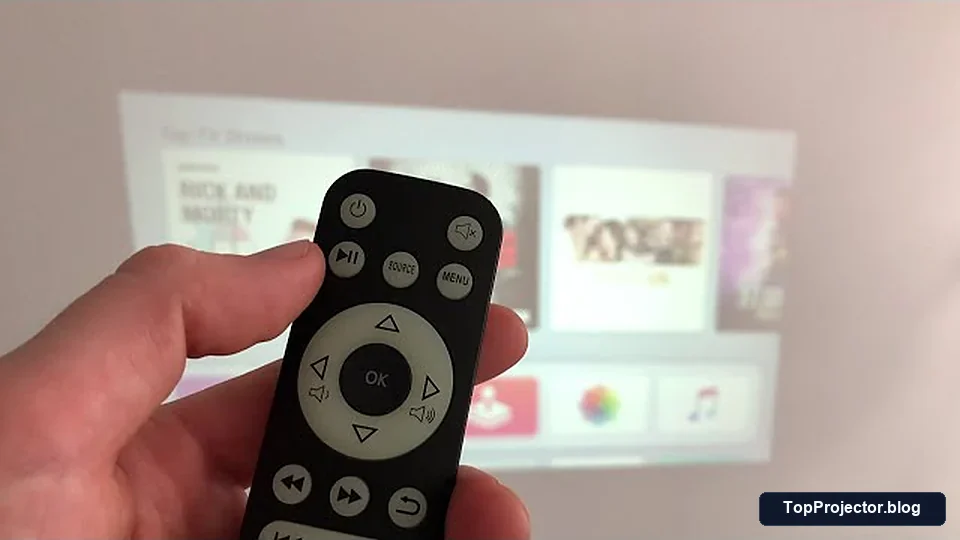
Mismatched resolutions cause terrible scaling artifacts. Follow our technical setup guide for connecting devices to output a fixed 1080p at 60Hz signal matching your projector limits.
Avoid dynamic refresh rate switching because converter boxes struggle to negotiate sudden timing changes on the fly. Manual configuration ensures stable frame pacing throughout extended viewing sessions.
Check your projector sharpness and overscan settings to eliminate fuzzy edges caused by analog conversion scaling. A clean pixel-to-pixel map preserves fine text readability on screen.
Monitor device operating temperatures, as intensive video processing inside compact converters generates notable heat over time.
Wireless and converted video paths often default to fallback resolutions. Manually force your Apple TV output to match your projector's native 16:9 aspect ratio to eliminate unwanted letterboxing.
Dynamic range matching preserves director intent. Lock your output settings to prevent continuous handshakes from flickering your projector's lamp or altering calibrated gamma tracking curves.
Chroma subsampling settings dictate text legibility on projection screens. Forcing 4:4:4 color formats over compatible wireless links prevents ugly color bleeding around high-contrast menu text and interface elements.
Frame rate matching eliminates cinematic stutter. Enable match content features so your Apple TV mirrors the native 24fps film cadence of your streaming application source material.
- Lock Apple TV resolution to native projector specs.
- Disable dynamic frame rate and match content range.
- Adjust projector overscan to zero for sharp edges.
- Ensure adequate ventilation around all converter boxes.
Troubleshooting Signal Dropouts and HDCP Handshake Failures
Alternate connection methods frequently disrupt secure digital handshake sequences required by streaming applications. An HDCP handshake failure results in a persistent black screen or error message.
Power cycling your entire projection chain in proper sequence usually resolves temporary synchronization locking bugs. Always turn on the display receiver first before powering up sources.
Inspect all intermediate adapter power supplies, as fluctuating voltage causes intermittent signal dropouts. Upgrading to higher-grade power bricks eliminates random connection losses during peak usage.
Firmware updates on wireless transmitter kits often patch compatibility bugs with modern streaming box updates.
HDCP handshake failures plague complex wireless projection chains. Power cycling your entire gear sequence in strict order usually restores the broken cryptographic key exchange between devices.
Signal dropouts often stem from insufficient power delivery. Upgrading to certified power adapters ensures your wireless receivers maintain steady voltage during peak brightness demands.
Firmware mismatches cause intermittent audio dropouts. Regularly updating both your Apple TV and wireless transmitter software resolves underlying protocol conflicts and stabilizes the HDMI emulation layer.
Electromagnetic interference disrupts uncompressed wireless transmission. Relocate transmitters away from household routers and microwave ovens to maintain a clean wireless spectrum during critical viewing sessions.
- Power cycle projector, converter, and Apple TV sequentially.
- Check all power adapter ratings for stable voltage output.
- Replace failing intermediary patch cables immediately.
- Update wireless transmitter firmware if available online.
Frequently Asked Questions
Can I connect an Apple TV to a projector using USB-C?
Apple TV units do not feature video-output USB-C ports for direct connection. You must use wireless HDMI transmitters or active conversion adapters instead.
Why is there an audio delay when using wireless video transmitters?
Wireless encoding and decoding processes introduce minor processing latency into the stream. Adjust your audio delay settings within the Apple TV menu to compensate.
Do I need a powered adapter for converting HDMI to VGA?
Yes, passive cables cannot bridge digital TMDS signals to analog VGA standards. Always use an active powered conversion box with a built-in chipset.
How do I get sound when using an analog projector input?
Insert an audio extractor between your source and the video converter. This splits out optical or analog sound directly to independent speakers.
Will wireless HDMI kits work through interior walls?
Most consumer wireless HDMI kits require a clear line-of-sight for stable transmission. Solid walls significantly degrade signal bandwidth and range performance.