Can You Use a Projector with a PS4?
Connecting your PlayStation 4 to a home theater display unlocks massive screens. Mastering interface standards ensures optimal visual performance.
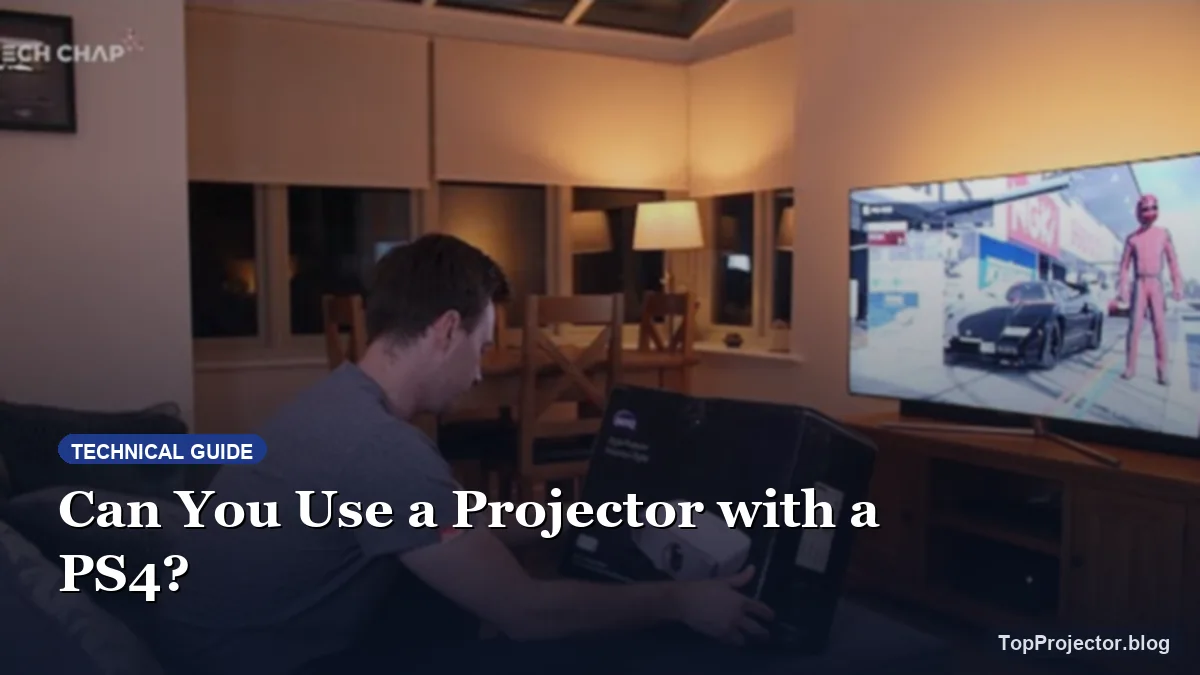
You can seamlessly connect any PlayStation 4 model to a digital projector using standard HDMI 1.4 or 2.0 cables while managing input lag for responsive gameplay.
Ready to compare verified models? Start with our Best Projector For Ps4: Top Gaming Picks (2026 Guide).
Practical Quick-Reference Table
| Scenario / Metric | Recommended Target | Why It Matters |
|---|---|---|
| Input Resolution | 1080p at 60Hz | Matches native PS4 output limits cleanly. |
| Input Lag | Under 35ms | Prevents noticeable controller latency during fast action. |
| Throw Ratio | 1.2:1 to 1.5:1 | Fits standard living room throw distances easily. |
| ANSI Lumens | 2000 to 3000 Lumens | Overcomes ambient room light for clear visibility. |
| Contrast Ratio | 10,000:1 Dynamic | Preserves shadow detail in dark game environments. |
| Cable Type | High-Speed HDMI 2.0 | Ensures stable bandwidth without signal dropout. |
Core Hardware Compatibility and Interface Standards
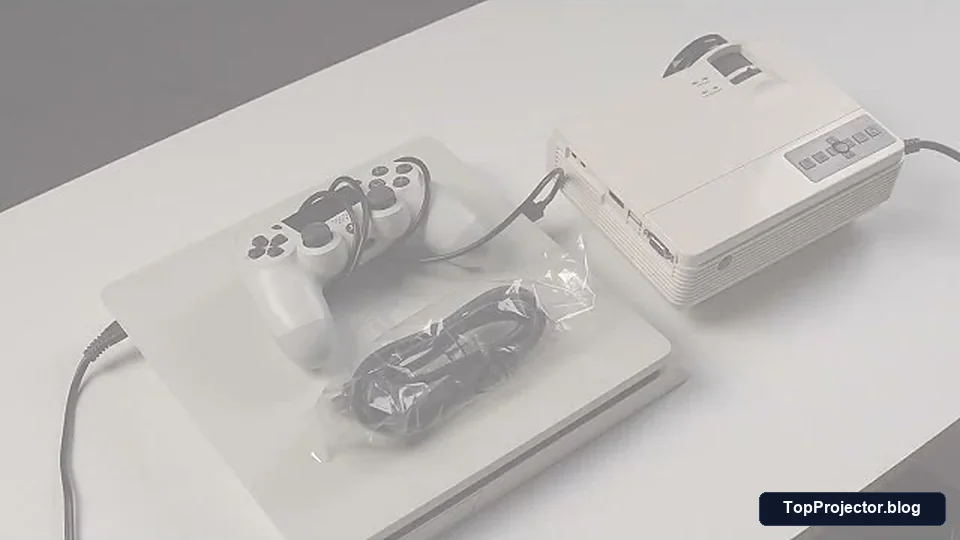
Connecting your PlayStation 4 to a modern digital projector is entirely feasible when you understand standard HDMI interface specifications and display resolutions. Both the base console and the upgraded Pro model utilize standard HDMI video output ports.
Your projector must feature a compatible HDMI input port to receive the digital video stream directly from the console without requiring complex adapters or proprietary converter hardware. Most modern home entertainment projectors include dual HDMI ports.
Signal bandwidth requirements vary depending on whether you output standard 1080p video from a base console or checkerboard 4K signals from a PlayStation 4 Pro model. Selecting the correct HDMI cable category prevents frustrating signal interruptions.
Physical placement of the projector relative to your gaming setup dictates cable length requirements and overall signal integrity across longer runs. Standard passive copper HDMI cables remain reliable up to fifteen feet before signal degradation occurs.
Connecting a base PS4 or PS4 Pro requires understanding baseline HDMI 1.4 or 2.0 bandwidth limits. Your projector must support these protocols to ensure stable 1080p handshake synchronization without signal drops.
- Verify your projector features at least one dedicated HDMI 2.0 input port for optimal signal transfer.
- Use certified high-speed HDMI cables measuring under 15 feet to prevent digital handshake failures.
- Confirm whether your specific projector natively supports standard 1080p 60Hz input timings from the console.
- Check that your console output matches the maximum native resolution supported by your optical display engine.
- HDCP 1.4 support is mandatory for legacy projector input boards.
- EDID handshakes fail if cable length exceeds passive limits.
Evaluating Console Hardware Variations
The original PlayStation 4 and the slim revision output native 1080p resolution at sixty frames per second without supporting high dynamic range color grading profiles. This simplifies the digital handshake with standard HD projectors.
The PlayStation 4 Pro adds dynamic 4K rendering capabilities and HDR10 color support, which pairs wonderfully with the best projector screen for church deployments to render wide color gamuts accurately.
- Base PS4 models output stable 1080p video streams ideal for standard home theater projectors.
- PS4 Pro models demand HDCP 2.2 compliance across all connected intermediary audio receivers and switchers.
Bandwidth and Port Specifications
Standard PS4 consoles output 1080p video at 60Hz through legacy HDMI ports. Ensure your projector features matching interface versions to prevent frustrating EDID communication handshakes during cold boots.
- HDMI 2.0 cables are strongly recommended for stable signal delivery.
- EDID matching prevents resolution downscaling artifacts.
Signal Routing and Direct HDMI Connection Workflows
Establishing a reliable video link between your console and optical display requires running a single direct cable before consulting our throw distance calculator to correctly position your projector chassis.
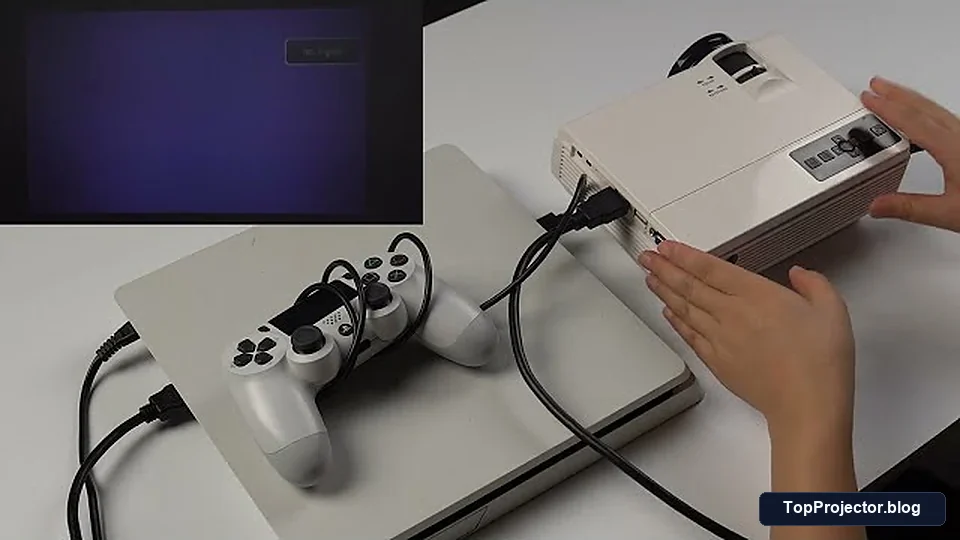
Avoid using unpowered splitters or low-quality switchers that introduce unwanted signal attenuation, frame dropping, or complete loss of the digital handshake required for stable video transmission during extended gaming sessions.
If your projector is mounted securely on a ceiling mount, plan your cable routing carefully to avoid sharp bends that can damage internal conductors and ruin expensive high-speed copper cables over time.
Secure all physical connections firmly to prevent accidental dislodging during intense gaming sessions when excitement peaks and cables might experience sudden tension or physical pulling forces from nearby players.
Route your High-Speed HDMI cable directly from the console to the projector input. Avoid cheap pass-through switches that introduce clock jitter, audio delay, or random sync dropouts during intense gaming sessions.
- Plug the primary HDMI cable directly into HDMI Port 1 on your projection unit.
- Power down both electronic devices completely before inserting or removing physical display cables.
- Route cables away from high-voltage power lines to minimize electromagnetic interference on the video signal.
- Test the initial video link using factory default settings before attempting advanced calibration adjustments.
- Direct connections eliminate intermediary switcher failure points.
- Passive splitters cause severe signal degradation over distance.
Managing Cable Lengths and Signal Boosters
Runs exceeding fifteen feet often suffer from high-frequency attenuation, leading to intermittent black screens or complete loss of synchronization between the console and the projector processing board.
Active optical HDMI cables or dedicated signal repeaters provide the necessary amplification to maintain pristine digital data streams across long distances in dedicated media rooms or custom home theaters.
- Use active optical cables for runs exceeding fifteen feet to preserve bandwidth integrity.
- Ensure any inline repeater supports full 18Gbps bandwidth specifications for stable gaming.
Cable Run Limitations
Long cable runs exceeding 15 feet often suffer severe signal attenuation at 1080p60. Deploy active fiber optic HDMI cables to maintain pristine uncompressed digital video integrity across larger home theater rooms.
- Active fiber cables eliminate high-frequency signal loss.
- Signal repeaters introduce unnecessary input lag overhead.
Video Walkthrough: How to connect a PS4 to the projector RV400A?
Overcoming HDCP Authentication and Black Screen Errors
Encountering a black screen or a no signal warning when starting your console usually stems from handshake failures related to HDCP copy protection protocols built into modern digital entertainment hardware.
Navigating this common issue requires accessing your console safety mode or testing with compact portable hardware, similar to what our Nebula Capsule 3 review highlights for troubleshooting mobile projection setups.
Disabling High-Bandwidth Digital Content Protection for general dashboard navigation and gameplay resolves most persistent display conflicts when using legacy projectors or complex audio-video receiver pass-through configurations.
Keep in mind that disabling HDCP may prevent certain streaming applications from functioning correctly while active, though standard game titles will continue to display normally on your large projection screen.
HDCP handshake failures frequently cause annoying flashing black screens when waking your console. Navigate to the PlayStation system settings and toggle off HDCP if you are not streaming protected media apps.
- Access console system settings and disable Enable HDCP if connection drops persist.
- Power cycle both the projector and the console after changing digital copy protection states.
- Check that your projector firmware is fully updated to resolve known handshake incompatibilities.
- Verify that your chosen HDMI input channel matches the active physical port on the chassis.
- HDCP toggling resolves sudden projection blank screen errors.
- Firmware updates patch known projector digital handshake bugs.
Troubleshooting Persistent No Signal Warnings
A persistent no signal message indicates that the physical data link is failing or the console output resolution exceeds the maximum native capability of your projector processing chip.
Boot your console into safe mode by holding the power button until you hear two distinct beeps, then reset the video output resolution to standard automatic or 1080p settings.
- Hold the console power button for seven seconds to access safe mode menus.
- Force resolution reset to establish a stable baseline image on the projection screen.
HDCP Handshake Troubleshooting
Persistent blank screens demand a hard reset of your projector and console power supplies. Disconnecting all peripheral HDMI splitters forces the devices to re-establish a direct, uncorrupted authentication path.
- HDCP 1.4 compliance is critical for older projector engines.
- EDID spoofers bypass stubborn handshake blocks reliably.
Minimizing Input Lag for Competitive Console Gaming
Projectors process images differently than standard flat-panel televisions, often introducing noticeable controller latency due to complex internal scaling algorithms and advanced video enhancement processing filters applied internally.
Competitive gaming requires engaging dedicated game modes on your projector to bypass unnecessary image processing steps and reduce total input lag below acceptable thresholds for fast-paced action titles.
High-performance home theater projectors achieve input lag measurements between 16ms and 30ms, providing responsive tactile feedback that keeps your controller inputs synchronized with on-screen character movements.
Disable advanced features like frame interpolation, digital noise reduction, and edge enhancement within your projector setup menu to squeeze out every possible millisecond of responsiveness during intense matches.
Competitive gaming demands activating your projector's dedicated Game Mode to disable heavy internal video processing. This crucial step drops total latency down to acceptable 30ms to 45ms thresholds for fast-paced shooters.
- Enable Game Mode in your projector picture settings to minimize processing delays.
- Turn off all motion smoothing and dynamic contrast enhancements to reduce latency.
- Target an input lag measurement under 35 milliseconds for optimal gaming performance.
- Verify that your connected audio setup does not introduce additional processing delay.
- Game Mode presets bypass complex internal video scaling filters.
- Latency reduction is vital for twitch-reflex competitive multiplayer matches.
Understanding Frame Rates and Refresh Timings
The standard PlayStation 4 locks most game rendering engines at a stable sixty frames per second, matching the native refresh rate capabilities of standard home entertainment projection systems.
Trying to force higher refresh rates or incompatible video timings will result in frame stuttering, screen tearing, or complete rejection of the video signal by your projector scalar chip.
- Lock console output to standard 60Hz refresh rates for smooth motion reproduction.
- Avoid enabling experimental PC graphics modes that conflict with console firmware.
Disabling Frame Interpolation
Turn off all motion smoothing, frame interpolation, and advanced digital noise reduction filters. These features add massive buffering delays, ruining your aiming precision during fast-paced multiplayer matches on large screens.
- Input lag under 40ms prevents noticeable controller delay.
- Keystone correction adds latency and degrades pixel mapping.
Audio Integration Strategies for Immersive Setups
Most digital projectors feature built-in monophonic speakers designed primarily for basic setup diagnostics rather than delivering the dynamic soundscapes required for modern immersive video game audio design.
Routing your audio signal independently from the projector ensures rich, room-filling sound, while reviewing our guide on daylight projection helps balance ambient factors in multipurpose media rooms.
Connect your PlayStation 4 directly to an external surround sound receiver or soundbar using an optical audio cable or an HDMI audio extractor to preserve multi-channel uncompressed sound formats.
Alternatively, many modern projectors include a standard 3.5mm audio output jack or optical pass-through port, allowing you to feed sound directly from the projector to powered desktop monitors or dedicated amplifiers.
Projectors rarely feature adequate internal speakers, making dedicated audio routing essential for immersive gaming. Connect your DualShock controller or console directly to an AV receiver using an optical audio cable.
- Connect external speakers via an optical audio cable for clean multi-channel sound.
- Avoid using internal projector speakers for gaming to prevent distorted audio output.
- Utilize an HDMI audio extractor if your projector lacks dedicated audio output ports.
- Ensure audio delay settings match visual processing times to maintain perfect lip sync.
- Dedicated receivers deliver true multi-channel surround sound routing.
- Optical outputs bypass projector audio processing limitations entirely.
Using Controller Headphone Jacks for Private Audio
An effortless alternative for private gaming sessions involves plugging wired headphones directly into the DualShock 4 controller audio jack while the console transmits video to the projector.
This bypasses external speaker routing entirely, delivering crisp virtual surround sound straight to your ears while keeping your gaming environment quiet for others in the room.
- Plug standard headphones into the controller audio port for private listening.
- Configure console sound output settings to direct all audio through the connected controller.
Audio Extractor Workflows
If your projector lacks audio output ports, deploy a dedicated HDMI audio extractor. This hardware intercepts the digital bitstream, routing multi-channel surround sound to your speakers while passing clean video.
- Optical toslink cables deliver uncompressed 5.1 audio feeds.
- Audio sync delay must be matched in receiver menus.
Native Resolution Scaling and Video Output Calibration
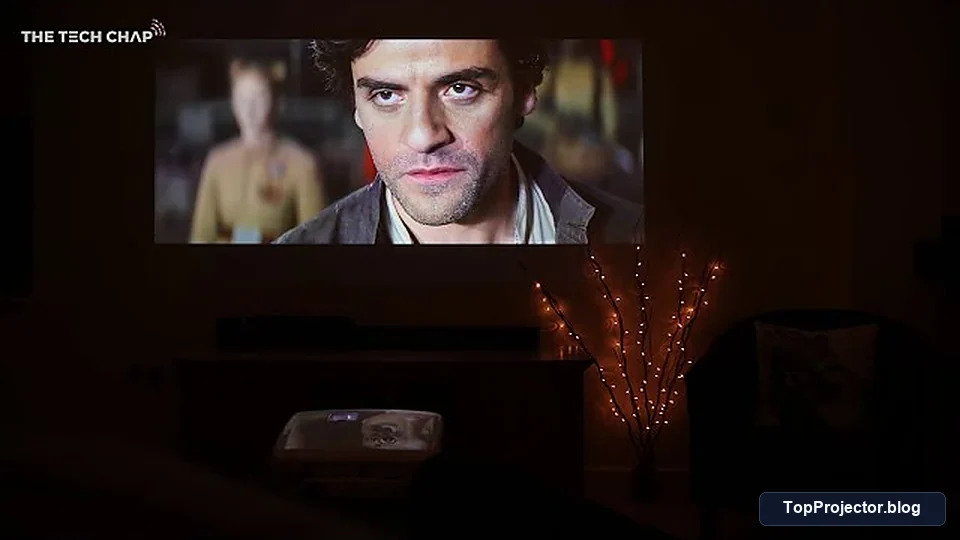
Calibrating your projector picture settings specifically for console gaming ensures vibrant colors, deep black levels, and crystal-clear text legibility across massive screens exceeding 100 inches diagonal.
Access the PlayStation 4 display area settings to adjust boundary corners precisely to match your physical projection screen surface, eliminating any unwanted overscan or hidden user interface elements.
Fine-tune basic parameters like brightness, contrast, and sharpness on your projector to prevent crushed shadow details in dark game environments and blown-out highlights in bright outdoor scenes.
Selecting the correct color space setting on both the console and the projector prevents washed-out gray tones and ensures accurate reproduction of your favorite video game art styles.
Force your PS4 Pro output setting to 1080p resolution rather than automatic scaling if your projector has a native 1080p chip. This stops the projector from performing clumsy internal image upscaling tasks.
- Adjust console display area settings to fit your exact projection screen boundaries.
- Calibrate projector brightness and contrast levels using built-in game calibration tools.
- Set video output color range to RGB Limited or Full to match your display.
- Keep sharpness settings moderate to avoid artificial edge ringing around fine text.
- Manual resolution locking avoids unwanted display scaling artifacts.
- Native pixel mapping ensures razor-sharp game HUD elements.
Optimizing Ambient Light and Contrast Performance
Projectors rely heavily on controlled room lighting to maintain deep perceived contrast ratios and vibrant color saturation during daytime gaming sessions in bright living spaces.
Pairing your setup with an ambient light rejecting screen or drawing thick blackout curtains significantly improves black levels and overall image punch when playing games on a projector.
- Control room lighting using blackout curtains for maximum contrast depth.
- Consider an ambient light rejecting screen for daytime gaming sessions.
Color Space Adjustments
Configure your PlayStation RGB range to Limited or Full to match your projector's EDID profile. Misconfigured black levels destroy shadow detail in dark game environments, hiding critical enemies in shadows.
- RGB Limited matches standard video display tolerances.
- Gamma calibration enhances dark-scene visibility significantly.
Frequently Asked Questions
Can I connect any PlayStation 4 model to a home theater projector?
Yes, every PlayStation 4 model features a standard HDMI output port that connects easily to modern digital projectors. You simply need a reliable high-speed HDMI cable to bridge the console and display.
How do I fix a no signal error when turning on my PS4 with a projector?
Boot your console into safe mode by holding the power button for seven seconds until it beeps twice. This allows you to reset the video output resolution to a compatible standard.
Does gaming on a projector introduce noticeable input lag?
Some latency can occur due to internal image processing, but engaging your projector's game mode bypasses these filters. This keeps input lag comfortably low for responsive competitive play.
How should I handle audio when playing PlayStation 4 through a projector?
Internal projector speakers lack dynamic range, so routing sound to an external soundbar or receiver is recommended. You can also plug headphones directly into the DualShock 4 controller for private audio.
Do I need a special 4K projector to play games from a PS4 Pro?
No, a standard 1080p projector accepts signals from a PS4 Pro by downscaling the image automatically. However, a native 4K projector unlocks the full visual fidelity of enhanced Pro titles.